Initial Requirements
- Learning Management System
- E-Commerce
- Businesses
- Eligibility Questionnaire / Discounts
- Proficiency Demonstration
- Website Backend (Super admin) **
- Course Completion Forms
Learning Management System
- ---
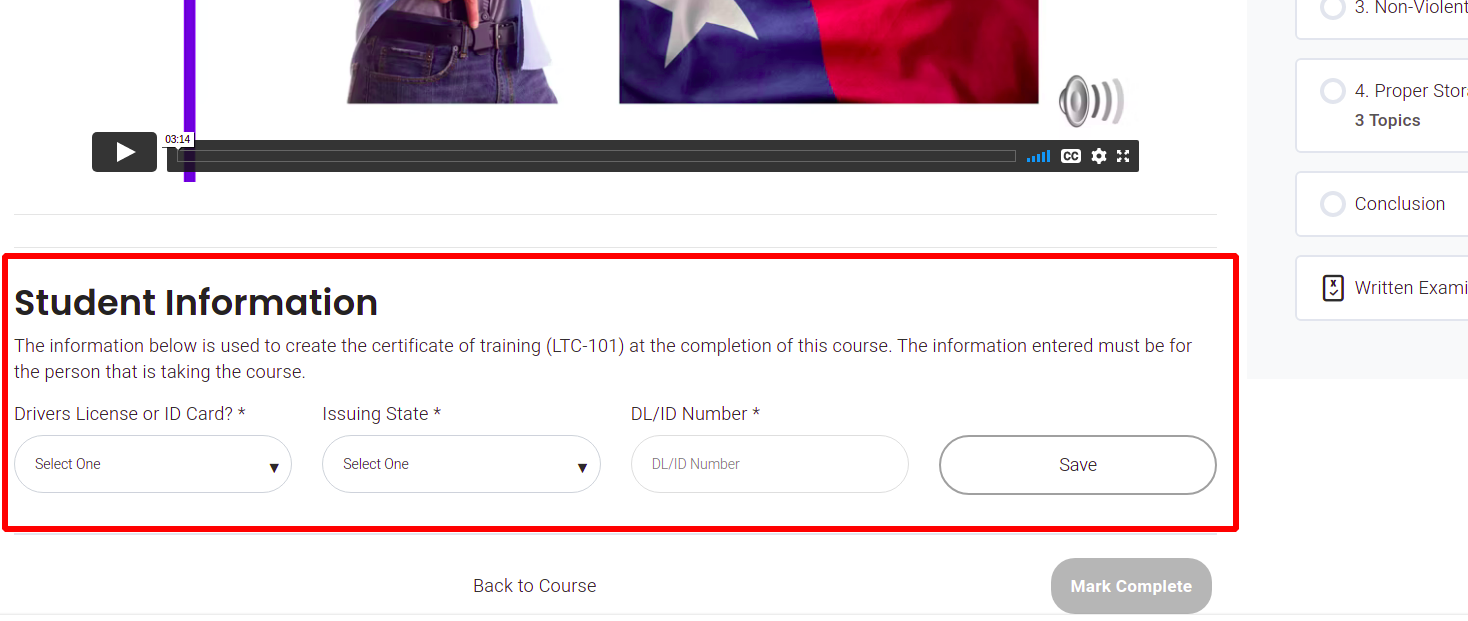
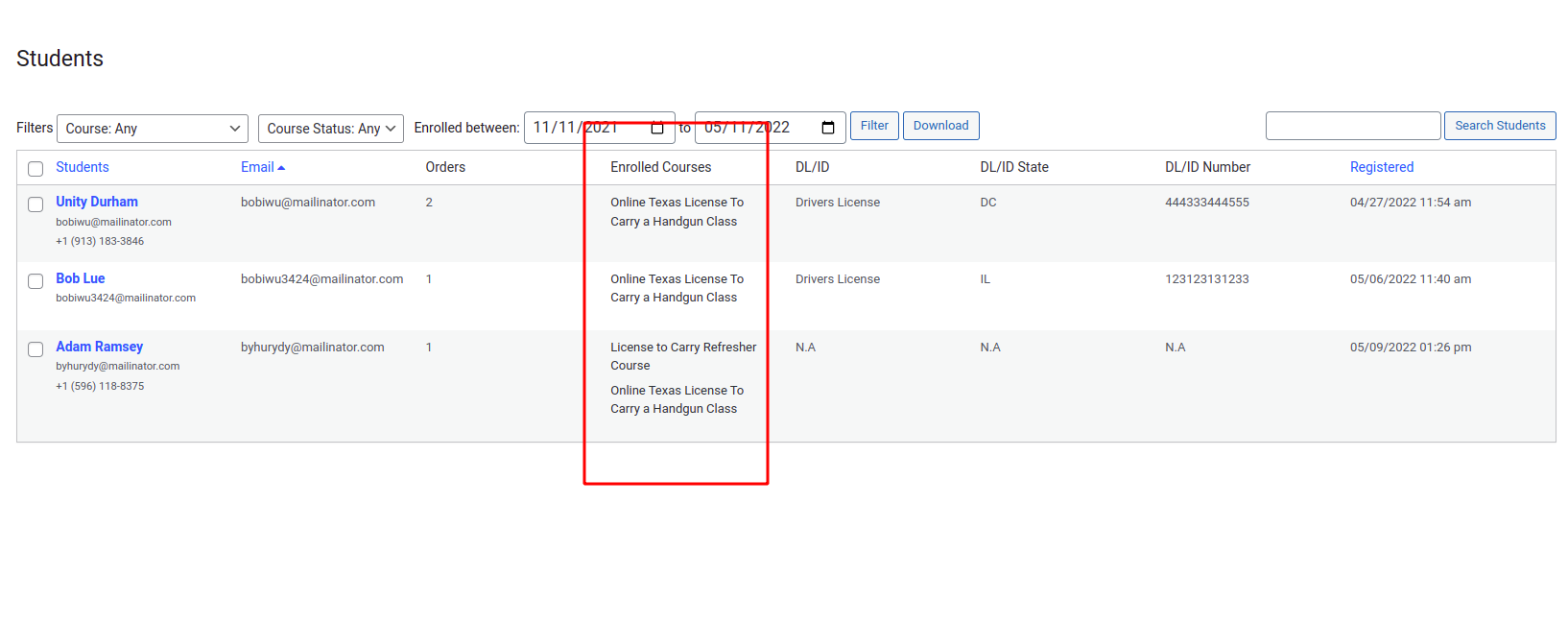
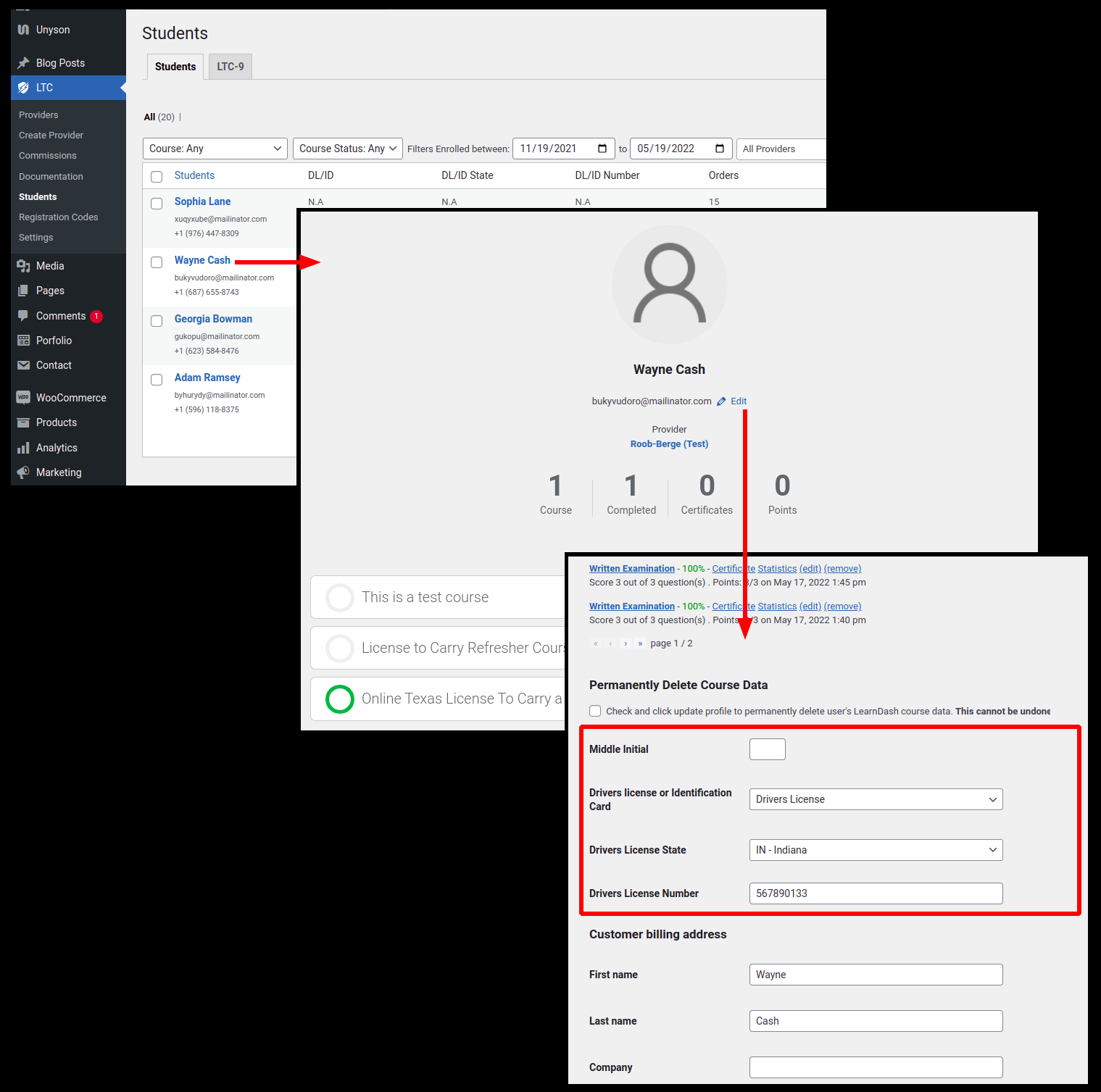
- On the intro video page, student information is collected. (drivers license number or ID number, state, and DL/ID number)

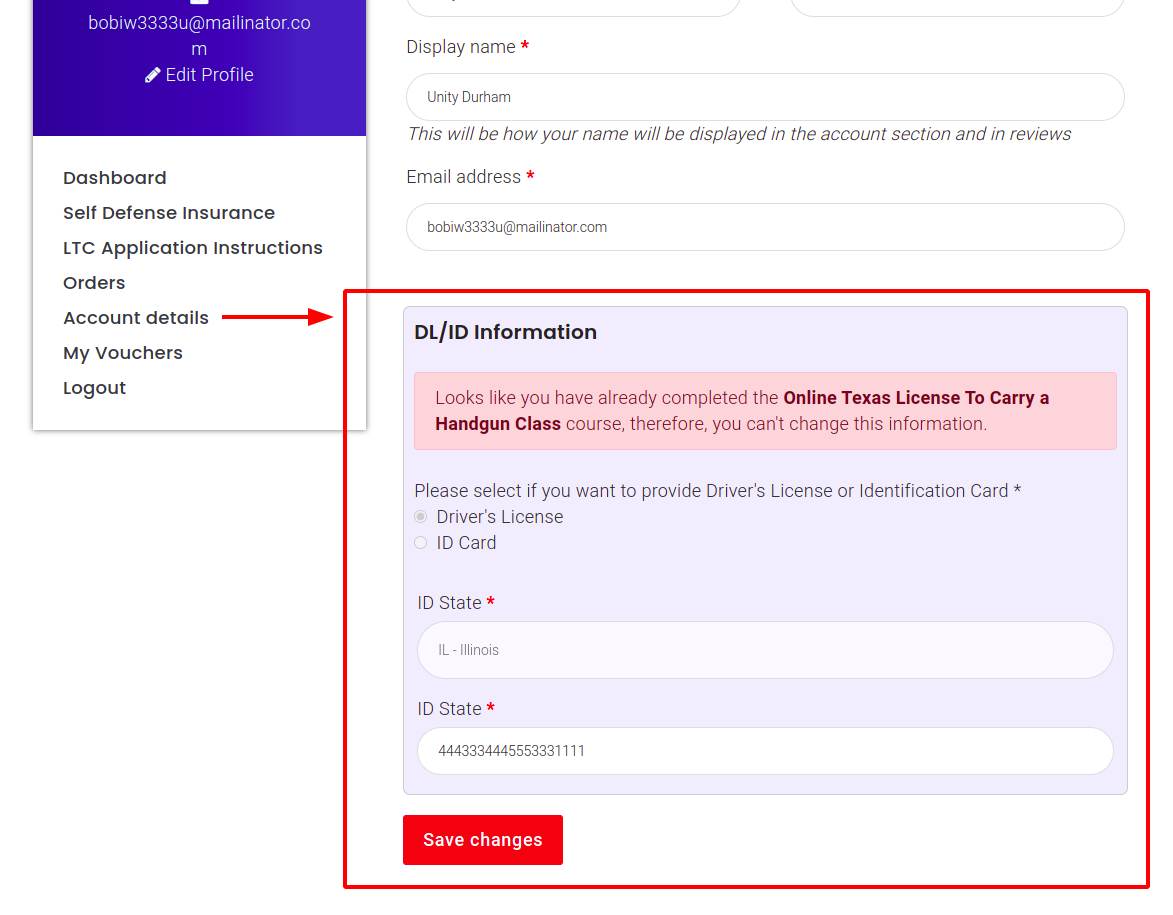
- The student should be able to view from the “my account” page, or elsewhere as appropriate, the information they entered.

- This information will be editable up until the quiz is completed.

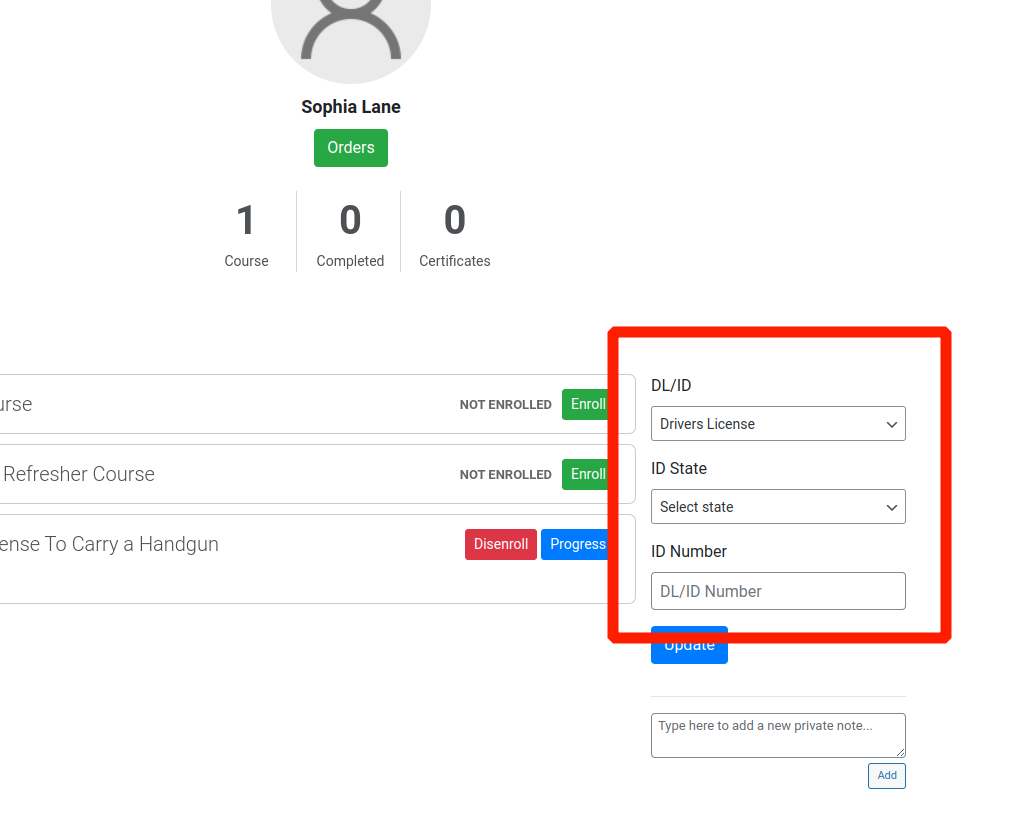
- Once the quiz is completed, only the site admin will be able to change this information.

👆 Provider Admin
👆 Super Admin - A page timer needs to be set for each video. This prevents the student from proceeding to the next video until the set time (time of the video) has passed.

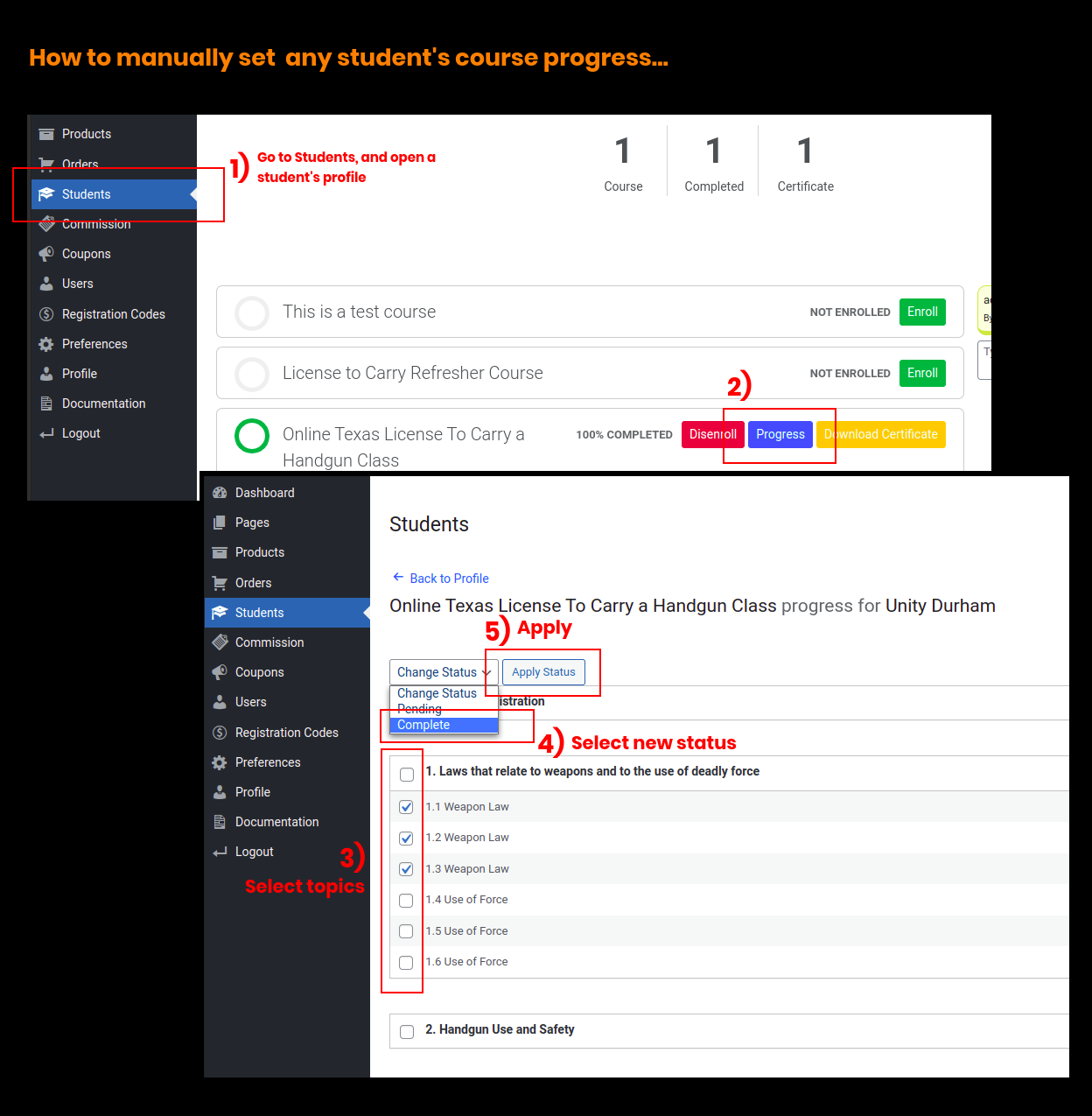
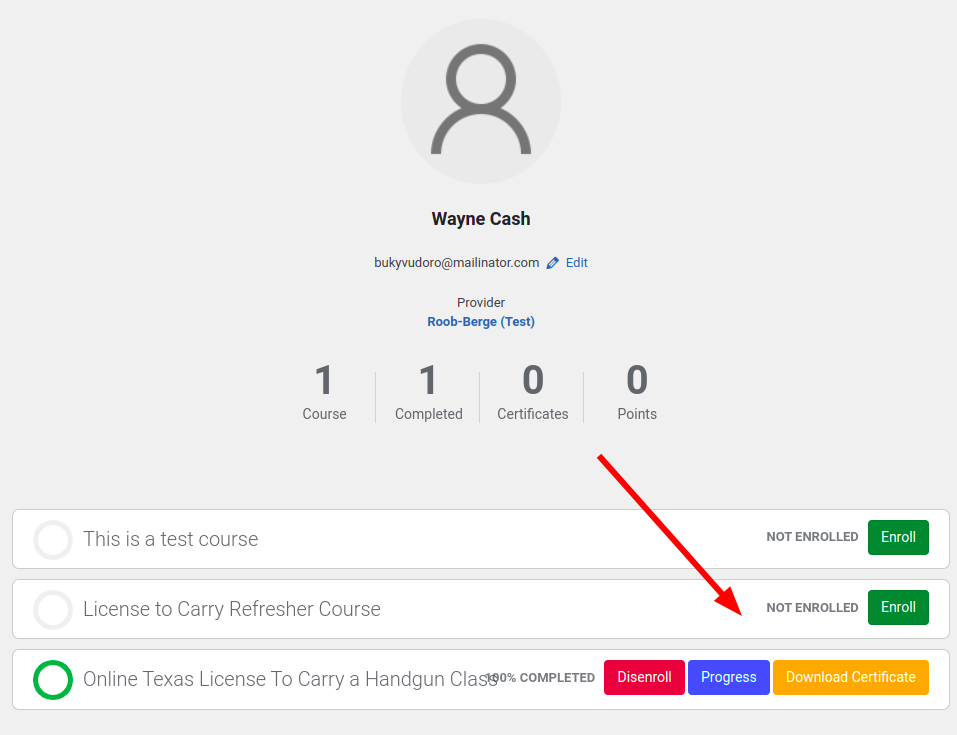
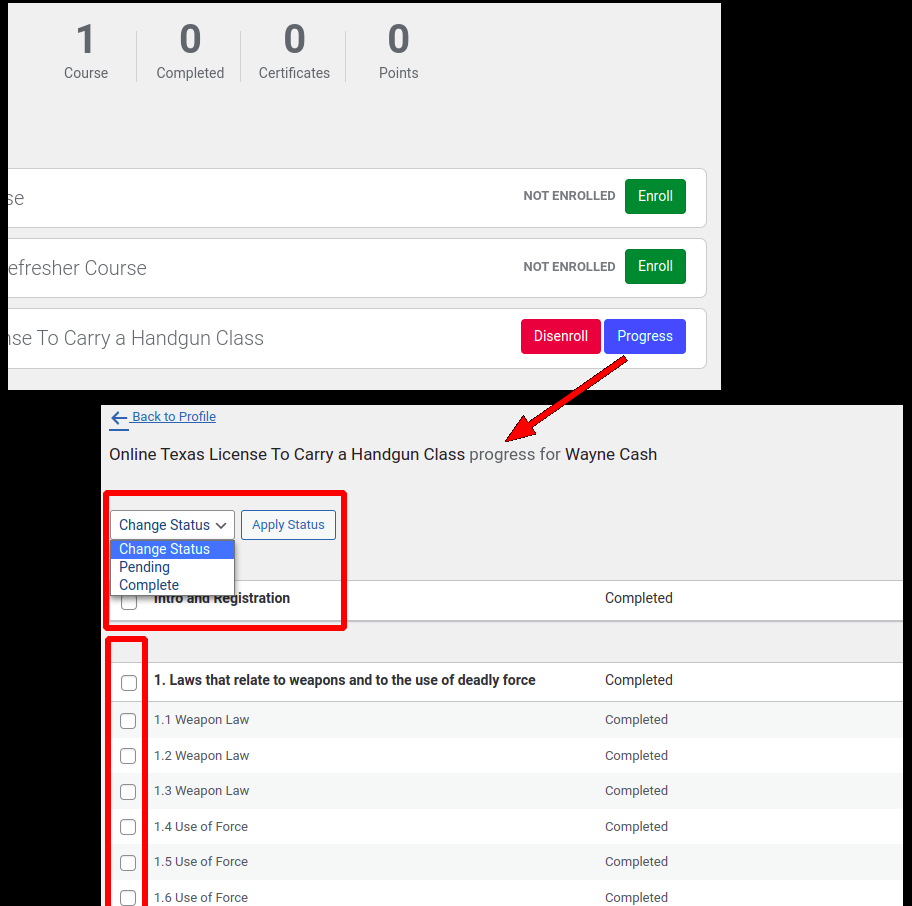
- Admins need the ability to manually mark the sections complete for students on the back end

- Progress is saved at the completion of each video
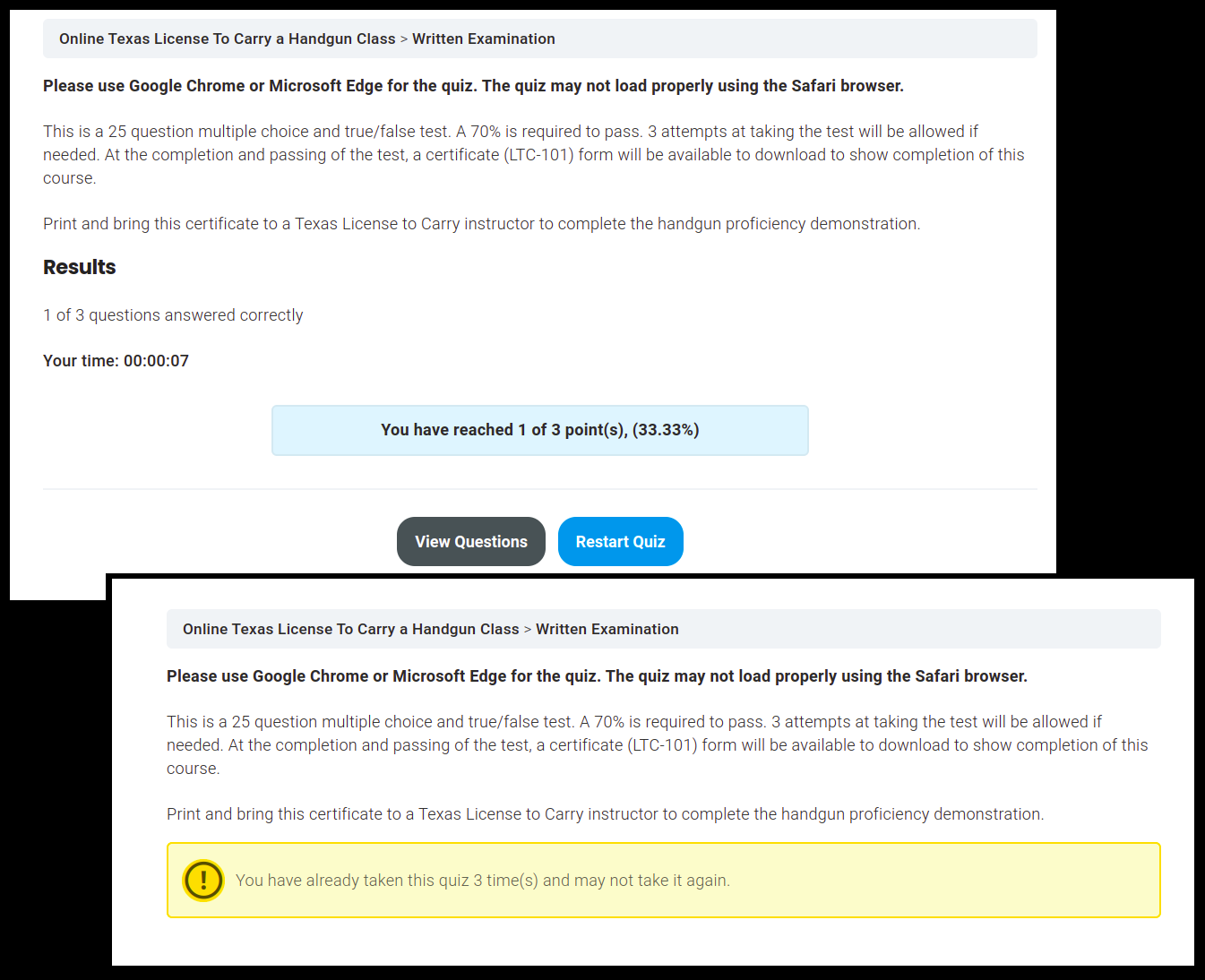
- After all the videos have been watched, there is a 25-question multiple-choice test.
- A score of 70% or greater must be achieved in order to pass
- 3 attempts are allowed

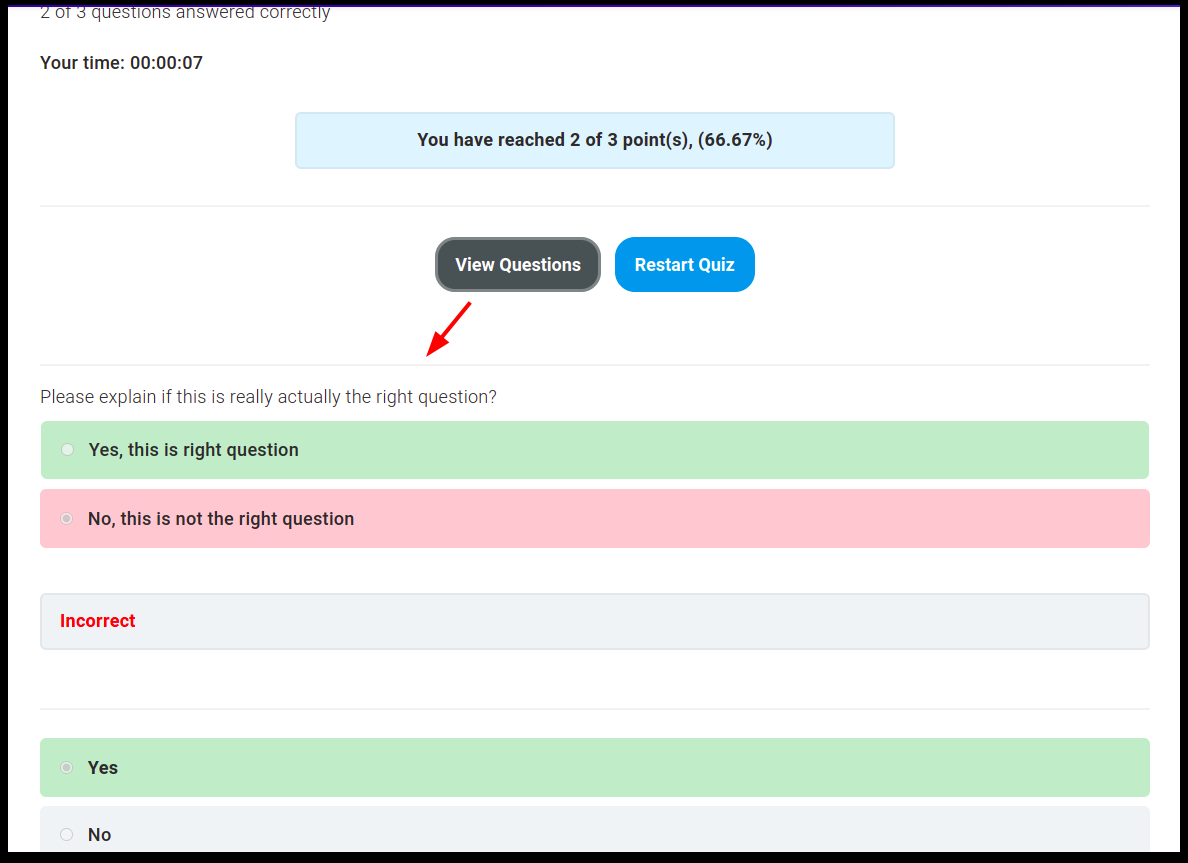
- Students should be able to review their scores and results after taking the test. This will be the only time to review the test.

- Once the quiz is passed, the student is issued a certificate of training

-
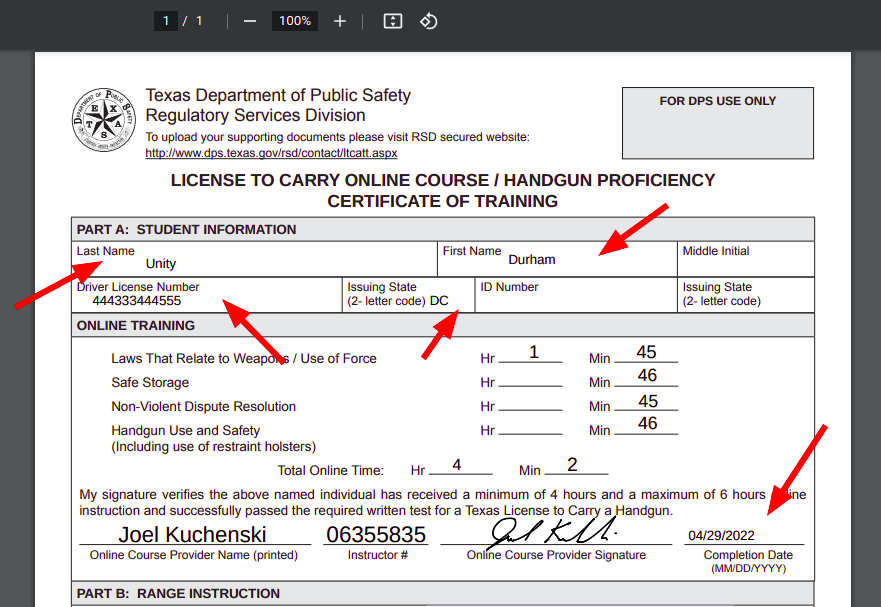
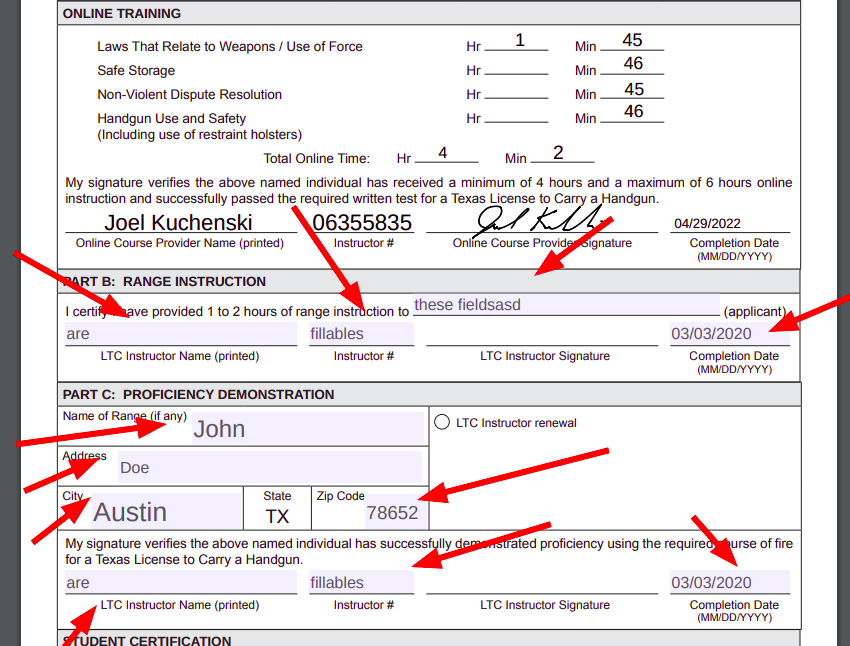
This certificate is a specific certificate in PDF or JPEG format from the state of Texas. It must be filled in with the information collected during the intro.
The following data needs to be printed on the certificate:
First name,
Last name,
Middle initial,
driver's license or ID number (depending on which they entered),
DL/ID state, course completion date
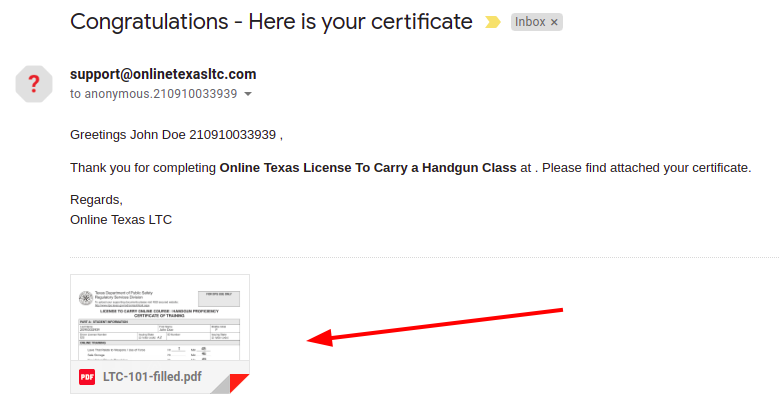
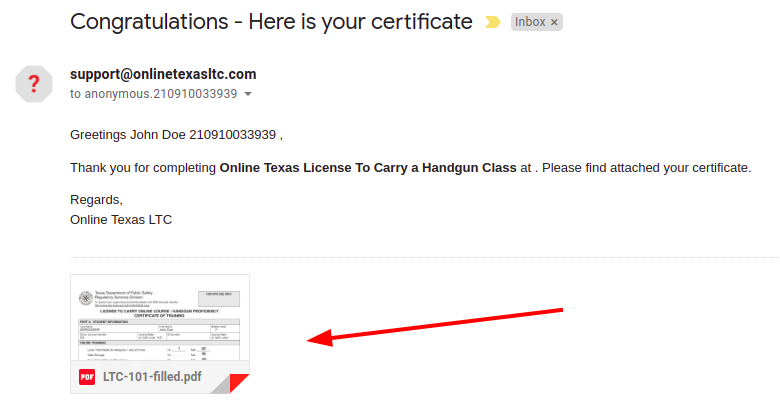
- The certificate should be emailed to the student

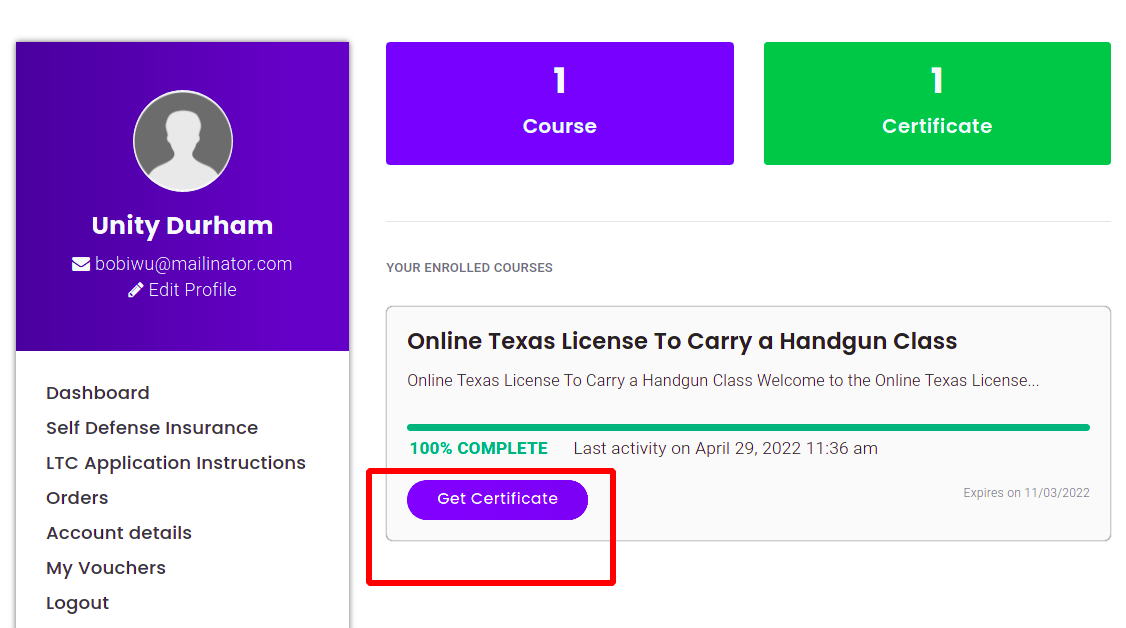
- … as well as downloadable from their my account page in PDF format.

- The additional empty fields in the PDF should be fillable.

-
- Also after the quiz is passed, multiple emails are sent out.
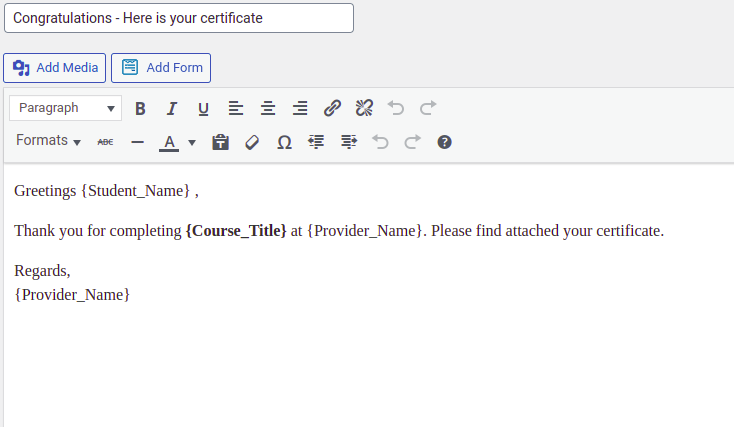
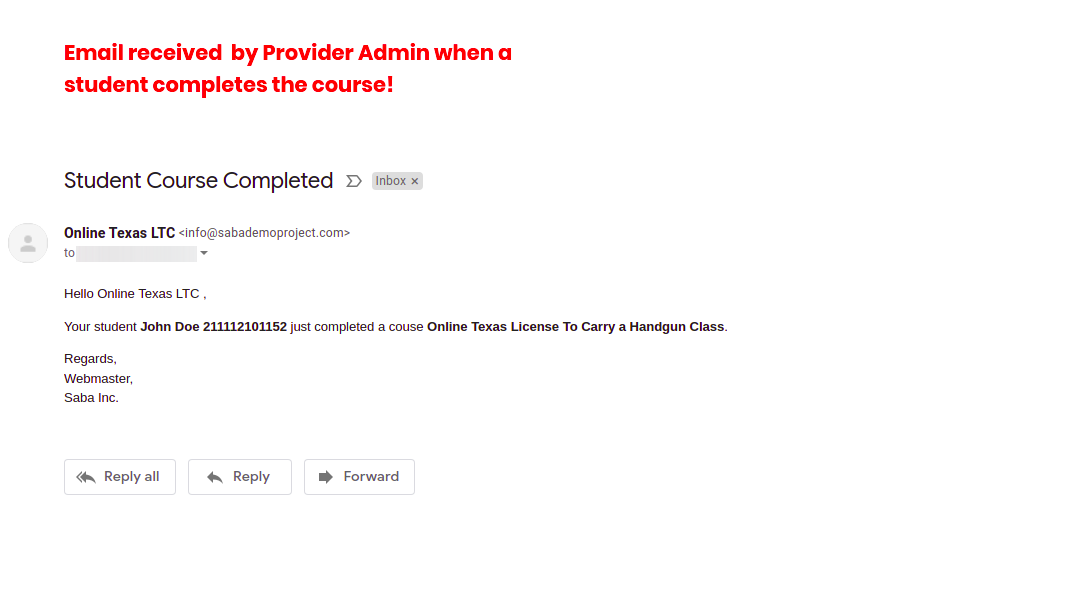
- The 1st is a course completion email. This email goes to the student and has customized and the content is specific to the business that the student purchased the class through as well as to which product from the business that the student purchased.

- The next emails sent out go to the email addresses of the business that the class was purchased through notifying that the student passed the class and with contact information for the student


- The 1st is a course completion email. This email goes to the student and has customized and the content is specific to the business that the student purchased the class through as well as to which product from the business that the student purchased.
- There is also an LTC Refresher class. This course consists of 4 videos with no page timers and no quiz.
- Need the ability to add additional classes if desired



E-Commerce
- Students can purchase the classes through the website
- Credit card processing is handled through PayPal Payflow pro-Authorize.net.
All processing is done without leaving OnlineTexasLTC.
[###] -
When the product/class is purchased, the student is enrolled in the course and can start immediately.

-
The order confirmation page needs to make it clear how to begin the course with a link/button to start immediately,
[See the screenshot above] -
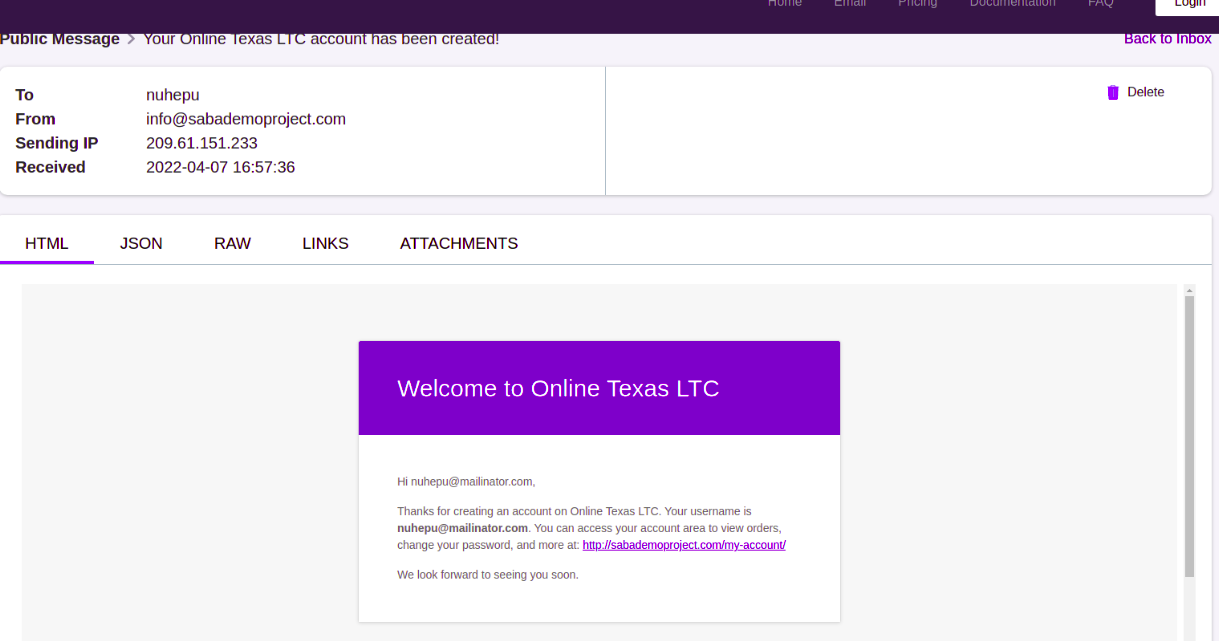
A purchase receipt/email is sent to the student which also contains the login information for the website.

-
The order confirmation email needs a link/button to my account page for students to take the course

-
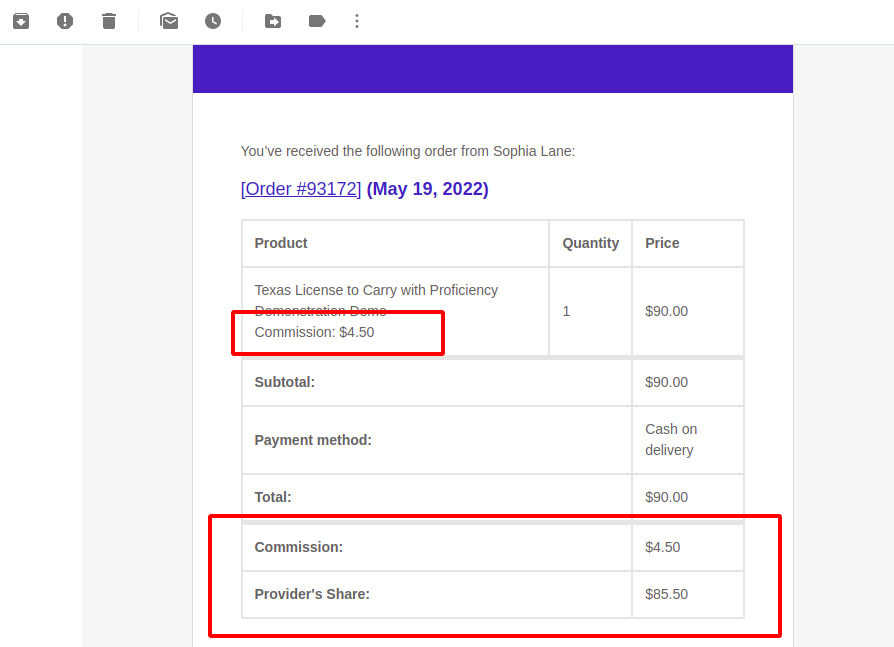
If the class was purchased through a business, that business will also receive a purchased email.
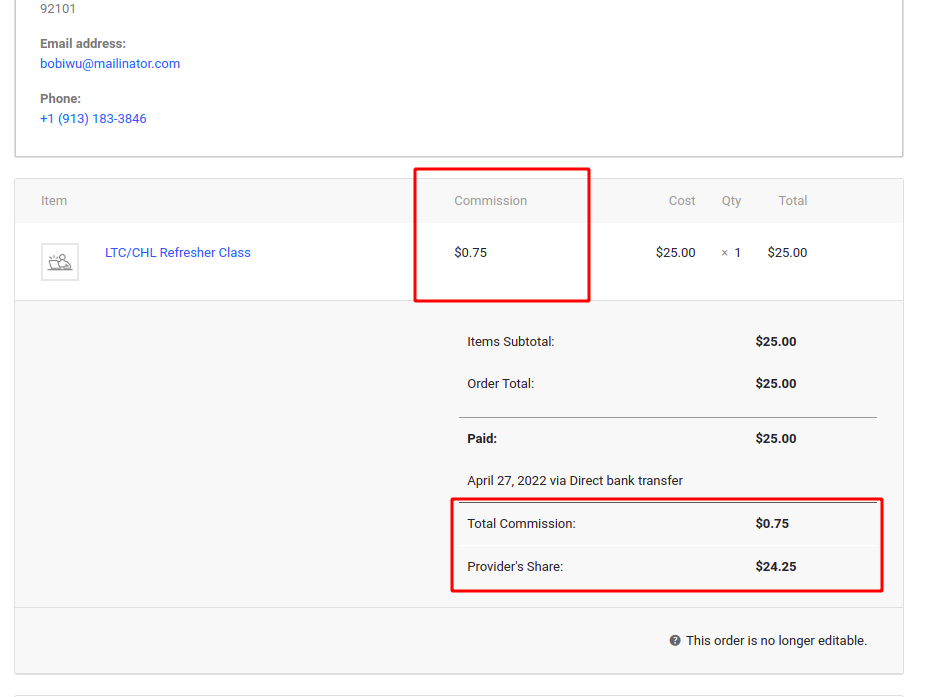
This email will contain the customer information, product purchased and the amount of commissions to be paid
-
Each business (Plugin: WC Vendors) that sells the online class has its own products setup for customers to purchase
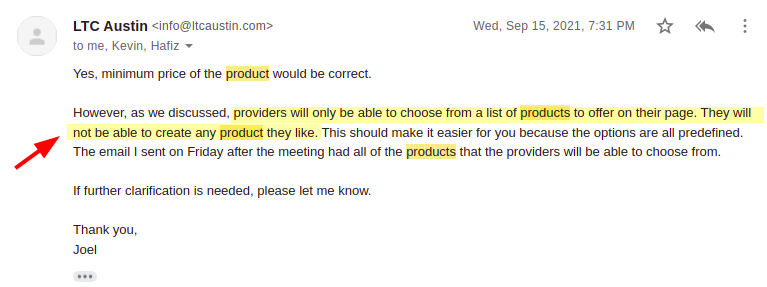
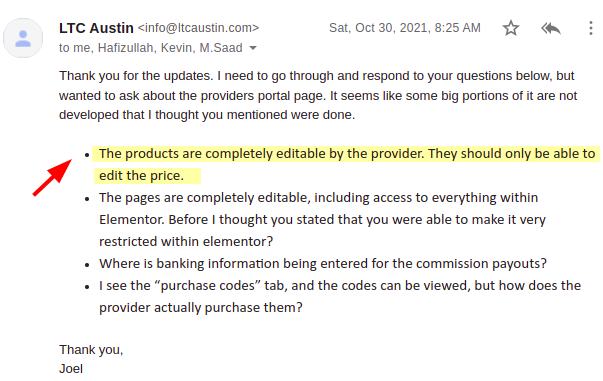
- As per your instructions, we removed the provider's ability to create products on their own. Please see the following:
- So, once a provider is registered, it gets some of your Super Admin products cloned. Which ones? you can select (Super Admin > LTC > Commissions > Settings) , as shown below:

- And here's how a provider can choose from the assigned products (via provider admin):

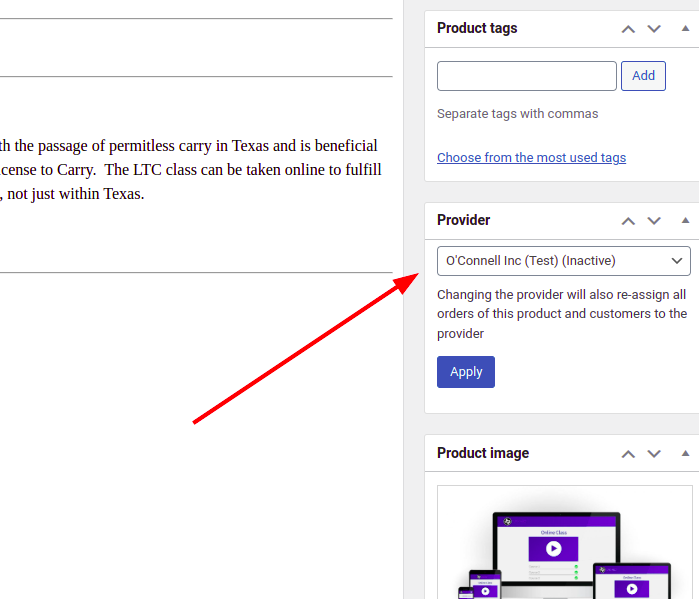
- Super admin can also assign/unassign any product to any provider by the following field on the product edit screen.

- Also, the super admin can decide the Product Description for new providers. Here's how:

-
Upon purchase of a product from a business, After every week, through ACHWorks, the commission is paid to the business.

-
Commissions (Plugin: WC Vendors) can be paid in one of two ways.
-
PayPal payouts - PayPal payout initiated after the purchase
-
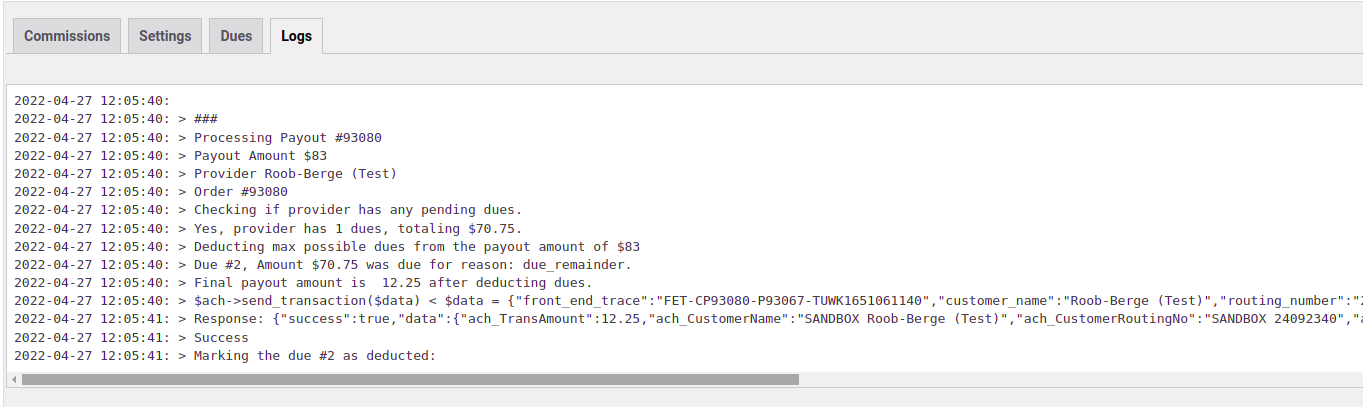
Direct Deposit (ACH) – commissions are added up for each business from each sale. Every week the commission data is exported to a text file with information from the business. (ACHWorks.com, a Sacramento-based company, is used for direct deposits.) Have direct deposit data auto-sent to ACH Works using their API (https://ww3.achworks.com/developers/).
- Check the following, a sample output of the script sending data to ACHWorks after deducting any provider dues if due.
-
-
When PayPal payouts commissions are paid and when the direct deposit commissions are exported, the commissions are marked “paid” for the business.

-
Commission Breakdown - A complete Commission management system was developed to allow you to set your own rates against each product instead of the following hard-coded rates…
-
OnlineTexasLTC receives $25 from every sale of the online LTC class that a business sells. The business receives the remainder through commissions.
-
OnlineTexasLTC receives $8 from every sale of the Online Refresher class that a business sells.
-
OnlineTexasLTC receives 10% of every product purchase that a business sells that does not include one of the classes.

-
-
Gift Certificate Option (Plugin: WooCommerce Gift Certificates Pro) (https://onlinetexasltc.com/product/online‐texas‐ltc‐gift‐certificate/)
Students can purchase a gift certificate for the online LTC class. The certificate is a gift card with a code on it that can be emailed or printed and redeemed for the online LTC class







Businesses
Web Pages (Provider Landing Page)
- Each business that sells the online classes receives its own webpage
(example: https://subdomain.onlinetexasltc.com/shoot‐ point‐blank https://shoot‐point‐blank.onli netexasltc.com/).
>>> The new system is subdomain-based. Each business will receive a dedicated subdomain URL. - Each page is based on a standard template.
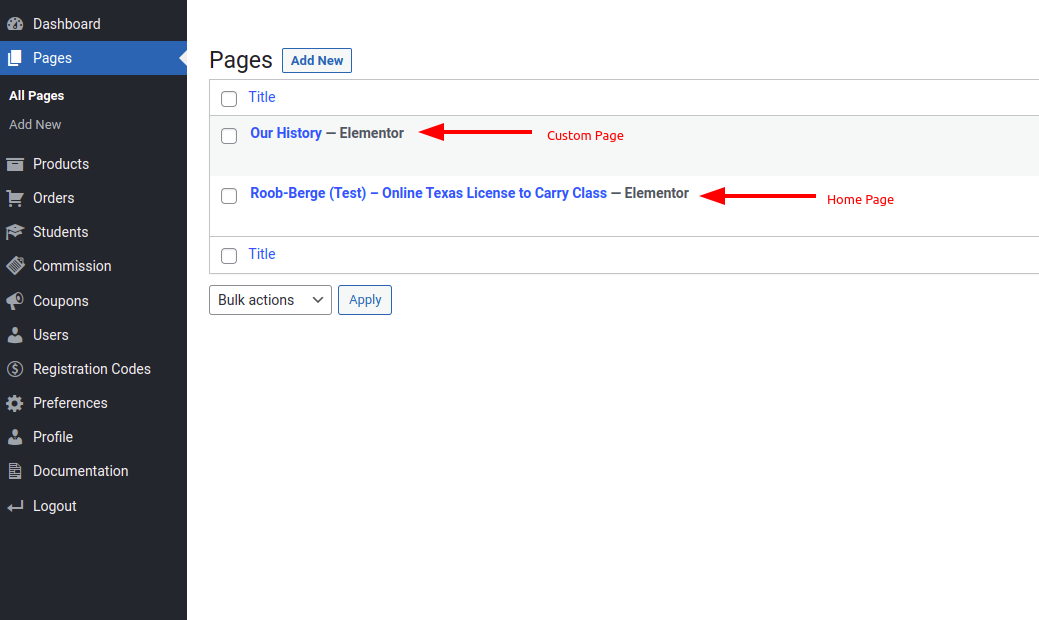
- You can view and edit that standard template in wp-admin > Pages > TEMPLATE - PROVIDER HOME page.
This is the page that is cloned for every provider, as their dedicated home page. This means, that all the
providers' home pages are just normal pages, which super admin can make any change to.
Any changes you make to this page template page will apply to future registrations.

- These pages will not have the standard site menu at the top to keep customers on the business page.
>>> Whenever a provider home template is cloned for it on signup, the provider home page gets a simple basic navigation bar.

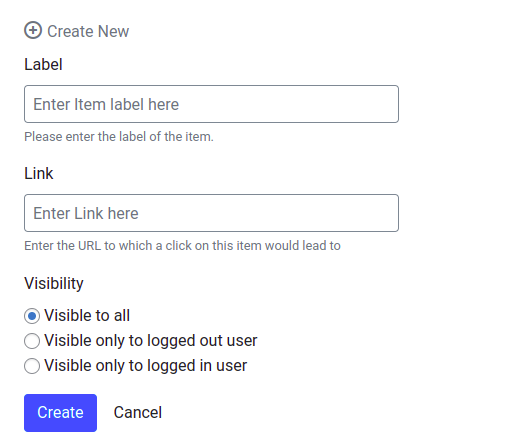
Provider admin can add/remove navigation items from provider admin.


- Individual business webpages need to be customizable as well for custom content a business may want.
>>> Provider admin can also create additional pages. Those pages are then available to be drag-n-dropped to the menu on the screen shown above.


- The page will be automatically created upon the business signing up.
- The page will have the business products to purchase and some basic information about the class.
For an example see: OnlineTexasLTC.com/Shoot‐Point‐Blank
>>> The standard template for the provider home page also contains a shortcode [LTC_PRODUCTS]. This
displays the provider's products and can also be used on custom pages that the provider creates. - This page template does not have to stay as it is. Better-looking pages would be good.
>>> Initially, we developed multiple header designs for the provider's home page. But on Joel's request in a meeting, we restricted it to one common header design for all providers - Sign Up Form (http://onlinetexasltc.com/
becomeaprovider/) Businesses will be able to sign up to become a provider and fill out the form.
>>> It's https://sabademoproject.com/become-a-provider/, a two-setup signup process.
Step 1
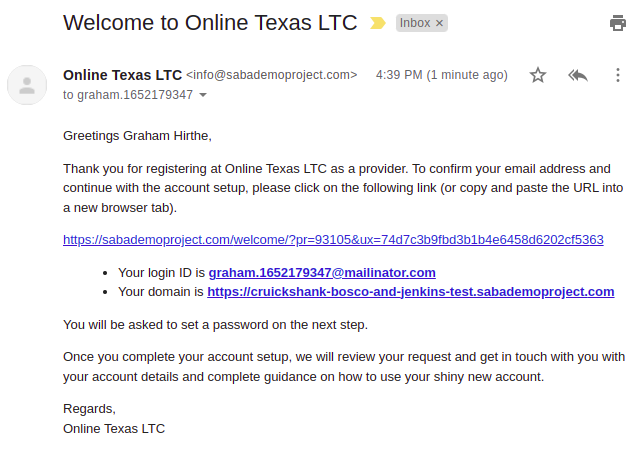
After the first step, the super admin will receive an email alert:

so does the provider as well:

The provider clicks the link and completes the registration:

Step 2
And then the superadmin receives another email:

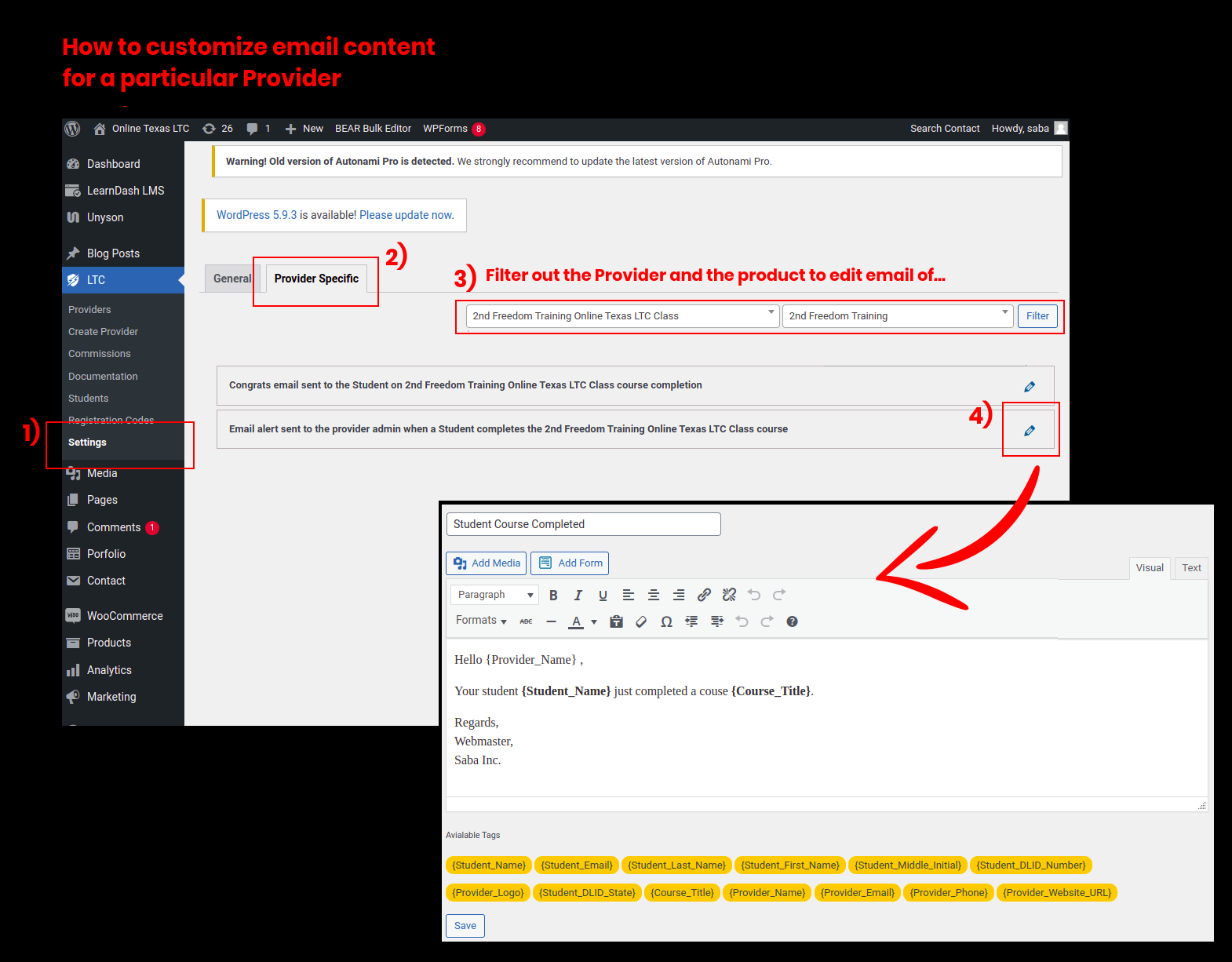
Email contents of these emails are customizable via wp-admin > LTC > Settings:
- The webpage and account setup of the business will be automated.
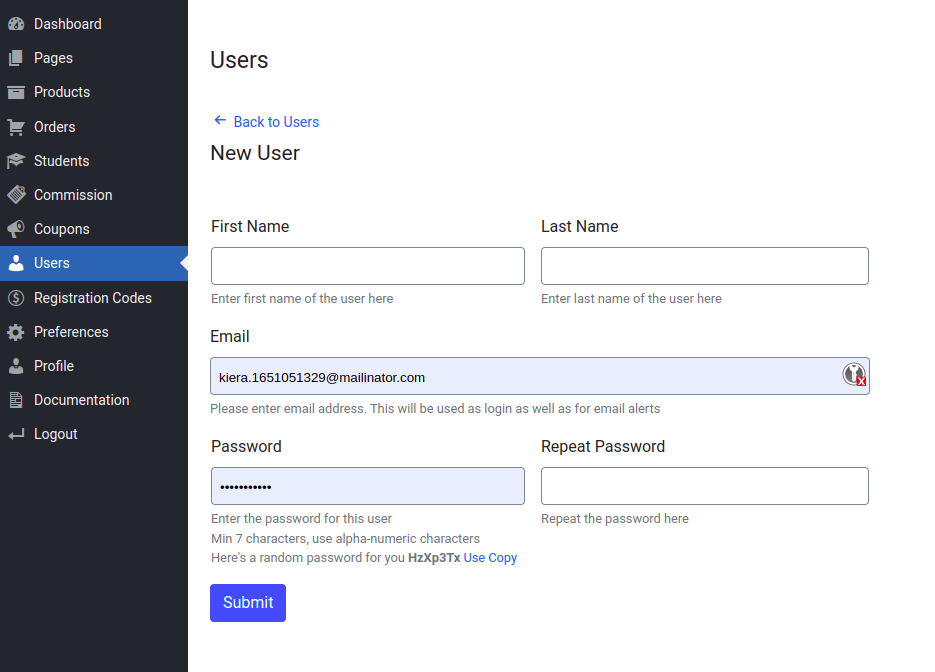
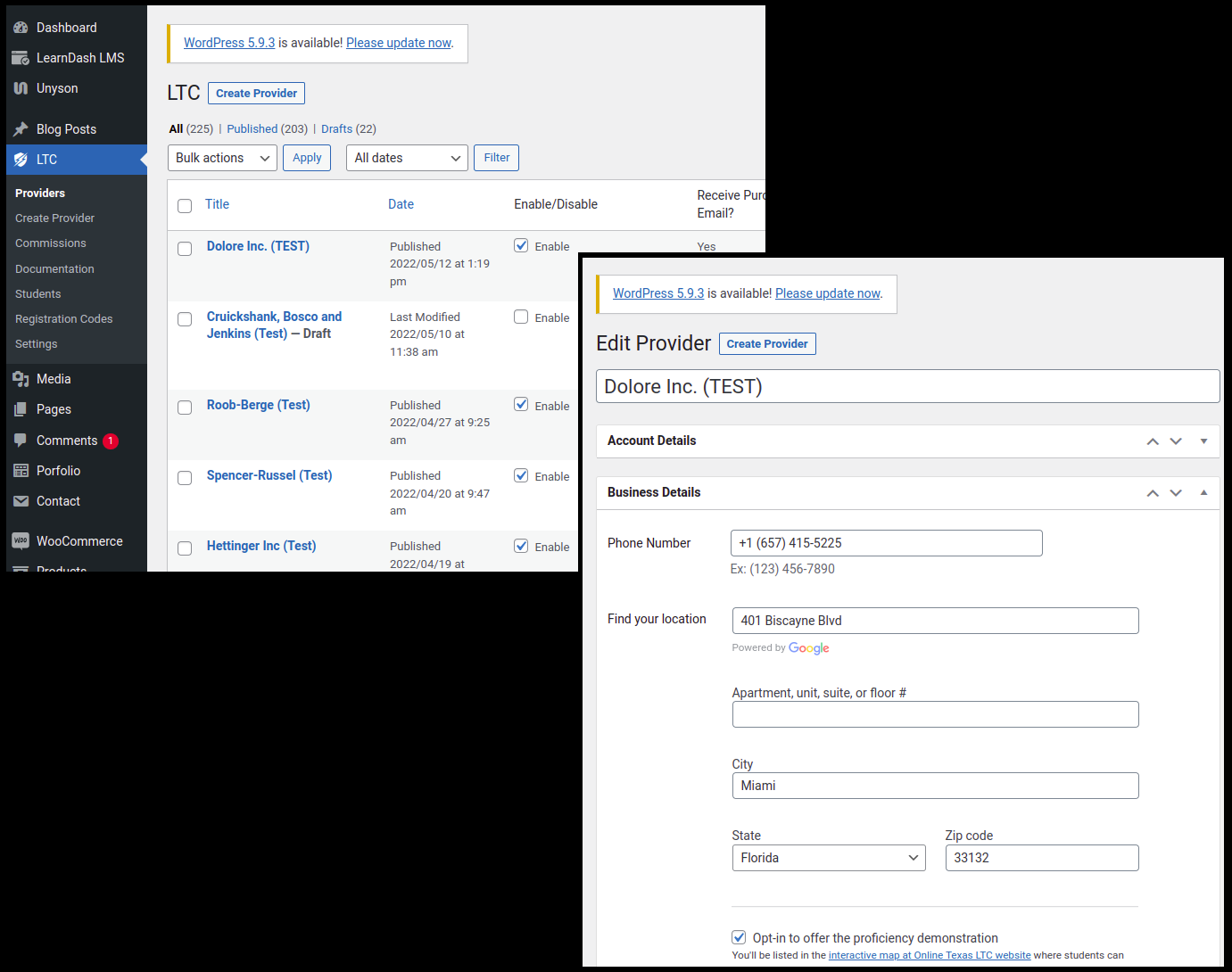
- Super admin can also create a provider from the super-admin backend






Business Portal (Provider Backend)
-
Businesses have their own login (or multiple logins). Logging in directs the user to the business portal.

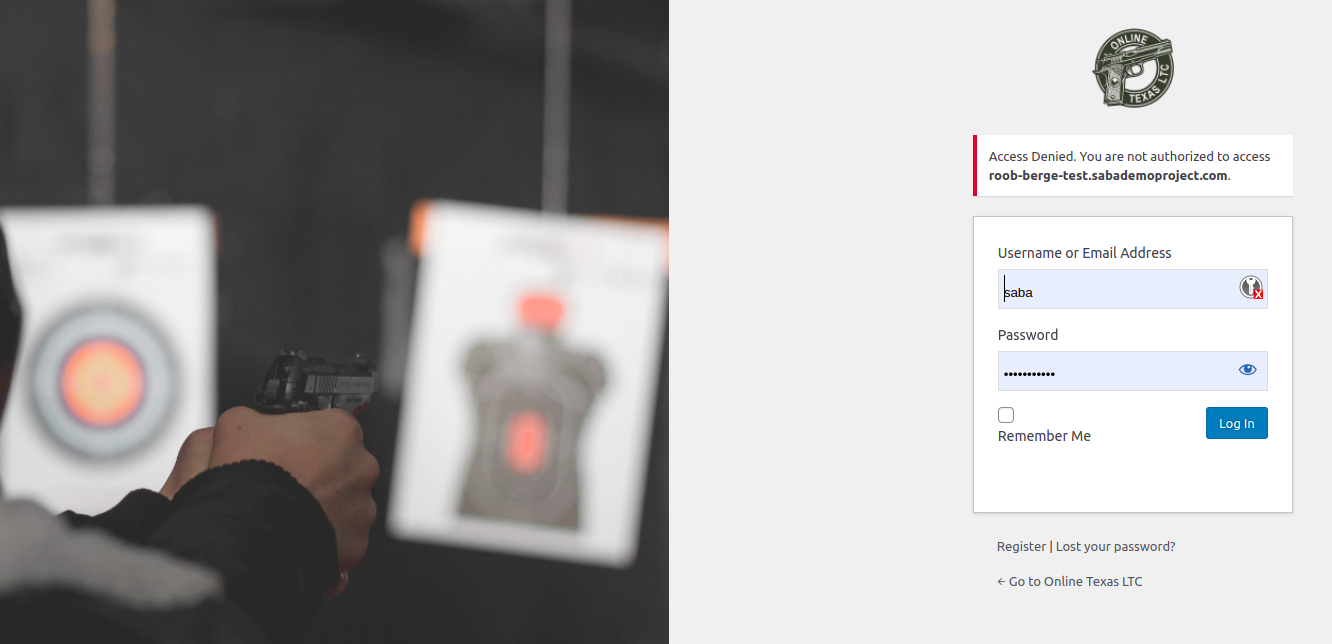
A provider admin can't log in to the main onlinetexasltc.com backend...

Similarly, every provider can only log in using their own assigned subdomain URL.
-
Multiple business login clarifications: each business can have multiple user accounts associated with it.


-
Restrictions should be able to be placed on accounts. Restrictions would prevent a user from potentially deleting/adding a product, or changing pricing, but would still allow the user to view student progress and certificates as described below

Restrictions can be set by Editing a user...
-
The business portal has multiple tabs/pages that can be navigated
-
The user will be able to view the following
-
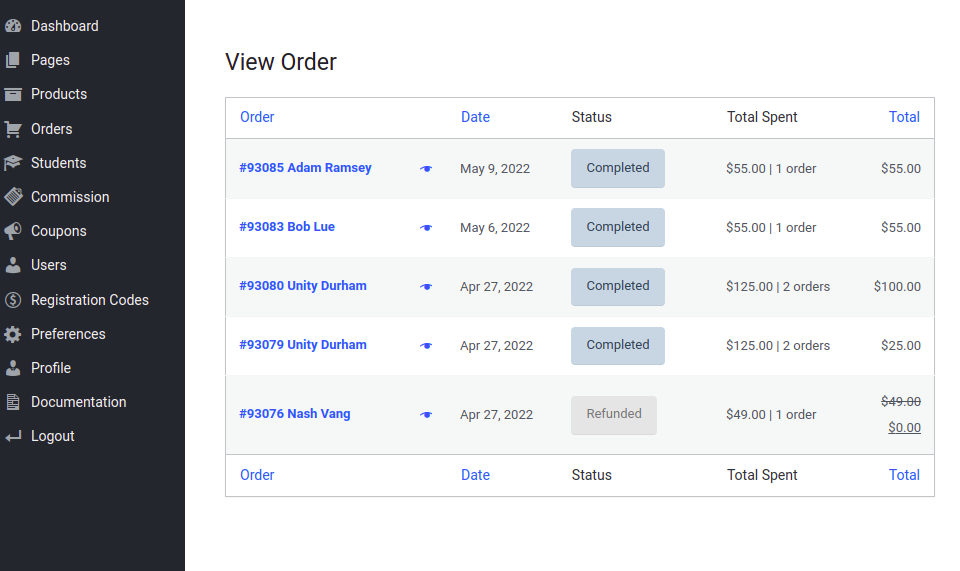
All product purchases from the business

Orders in the provider's admin panel

Order Details -
All commissions and associated data

-
Be able to export purchase and commission data to excel

-
This export should include the customer name, email address, phone number, date purchased, total purchase price, commission amount, class progress (if applicable), course completion date (if applicable)

-
Commissions will show which are paid and which are pending

-
All commissions paid via PayPal payouts should immediately be processed after the purchase and will show paid right away.
-
Commissions paid via direct deposit will show pending until data is sent to ACHWorks, at which time it will change to a paid status.
-
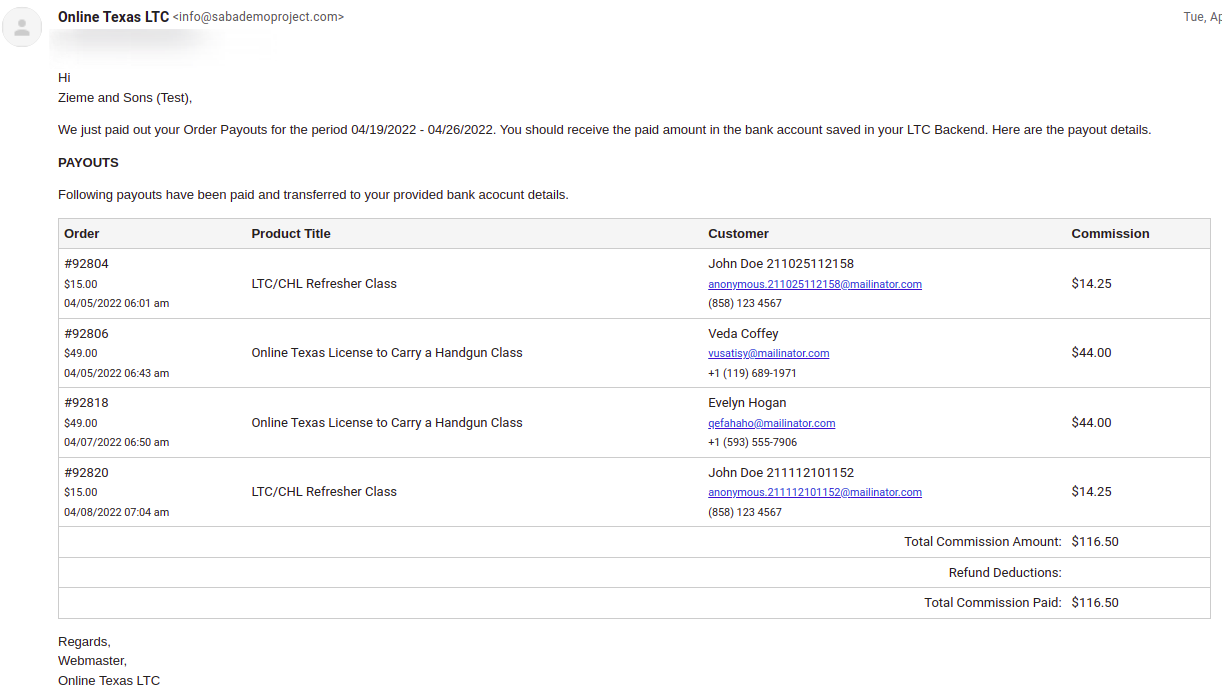
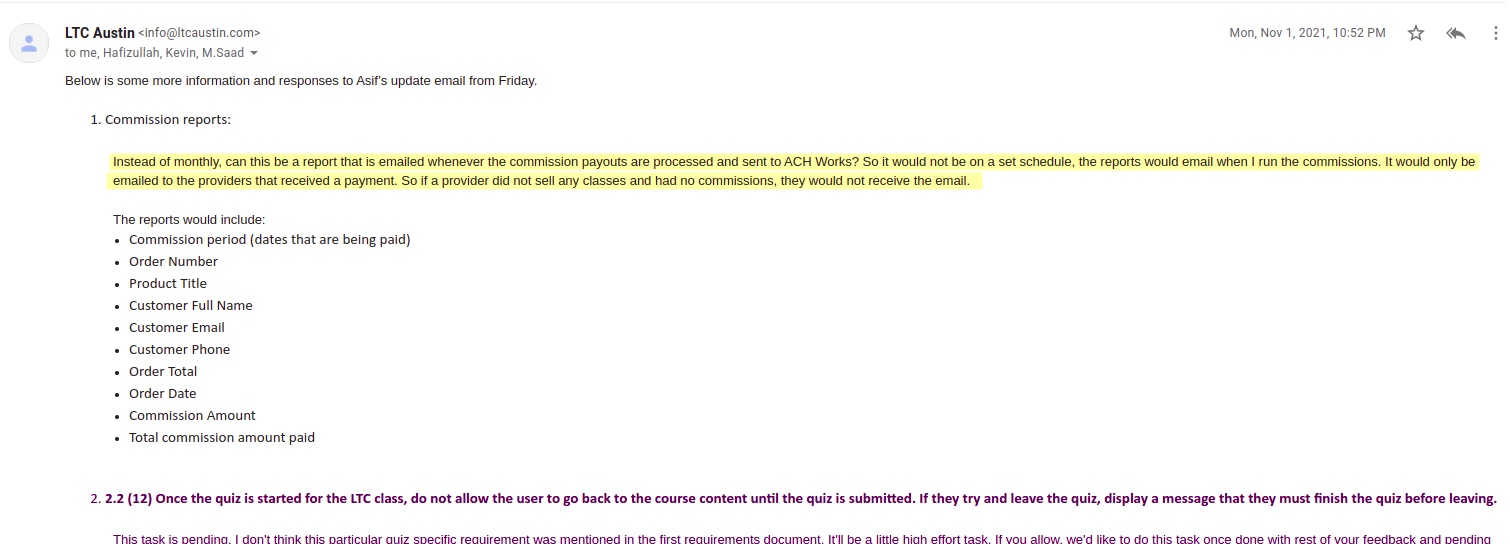
Monthly commission reports
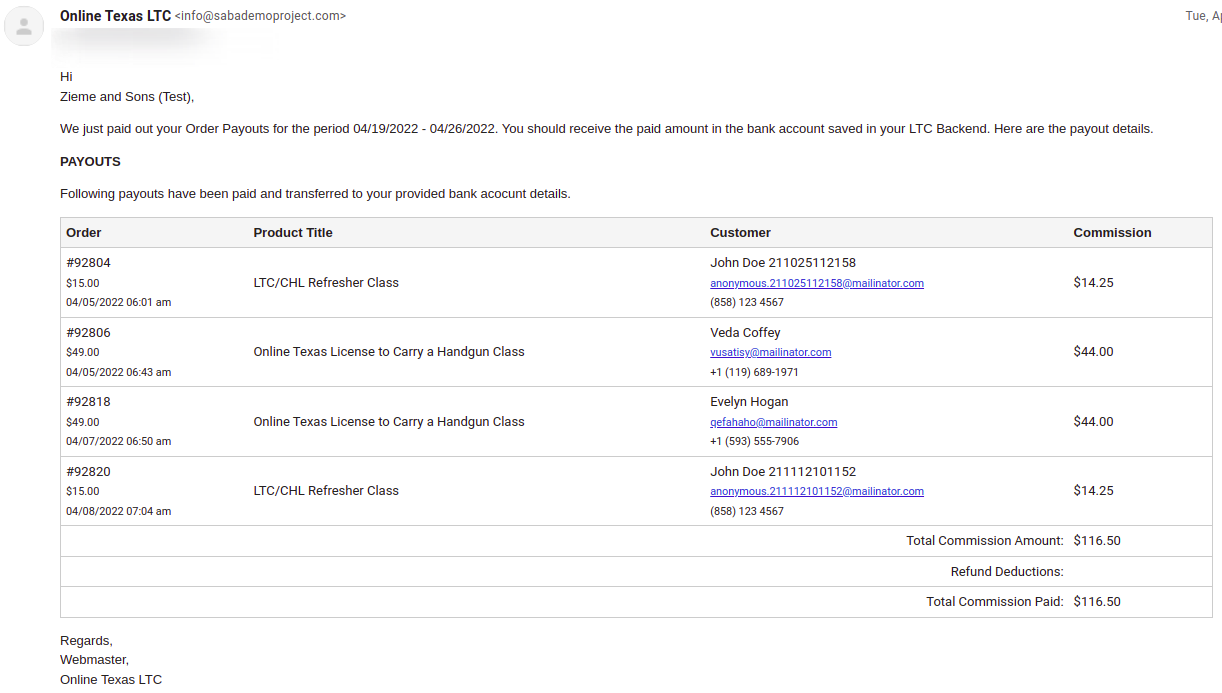
On the 1st of each month, every business will automatically be emailed a full report of commissions paid and/or pending. This report will show how the commissions were paid, how many and of which classes were sold, the commission amounts, and which commissions are still pending (for direct deposits).

Sample commission report sent at the time of ACHWorks API execution weekly.
-
-
Student management
-
View table with student progress in the LTC class. *only for students that purchase the class through their business

-
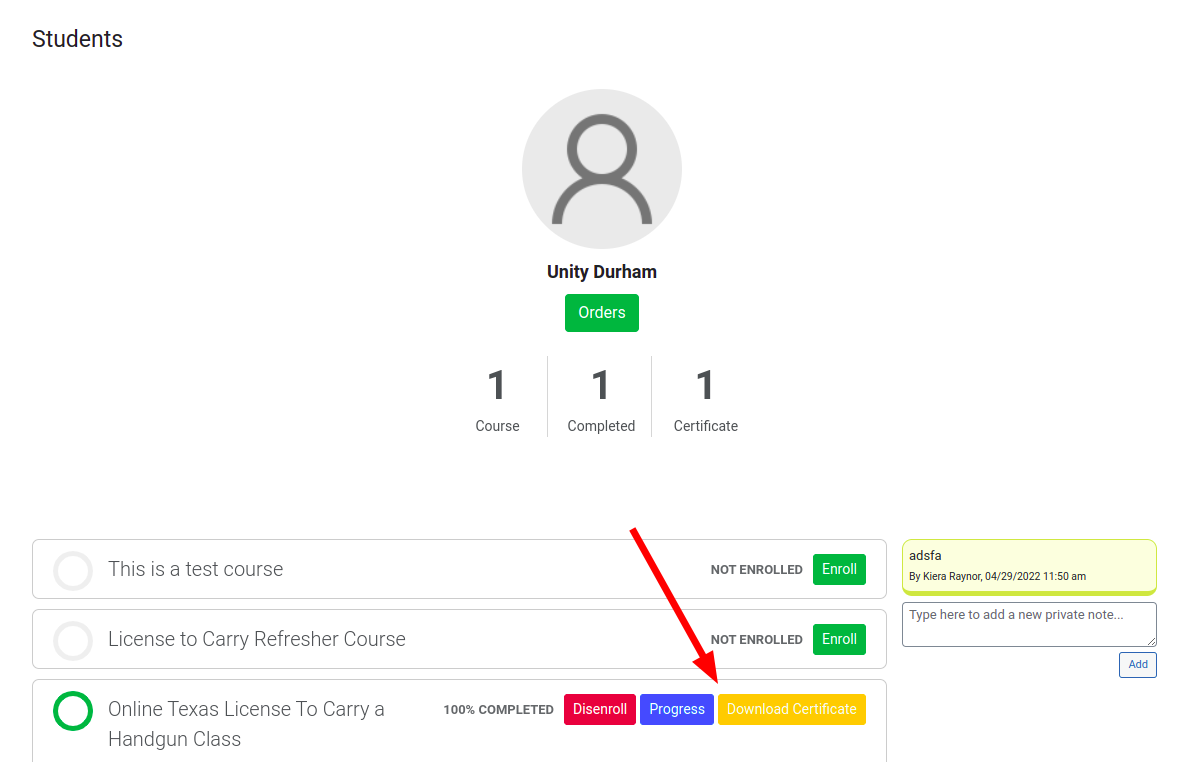
For clarification, this table will display the following information: student name, email address, course progress (percentage), certificate download link/button, completion date, and class purchased.
∙ Be able to export this data to excel

-
Download certificates of training from students that have completed the class

-
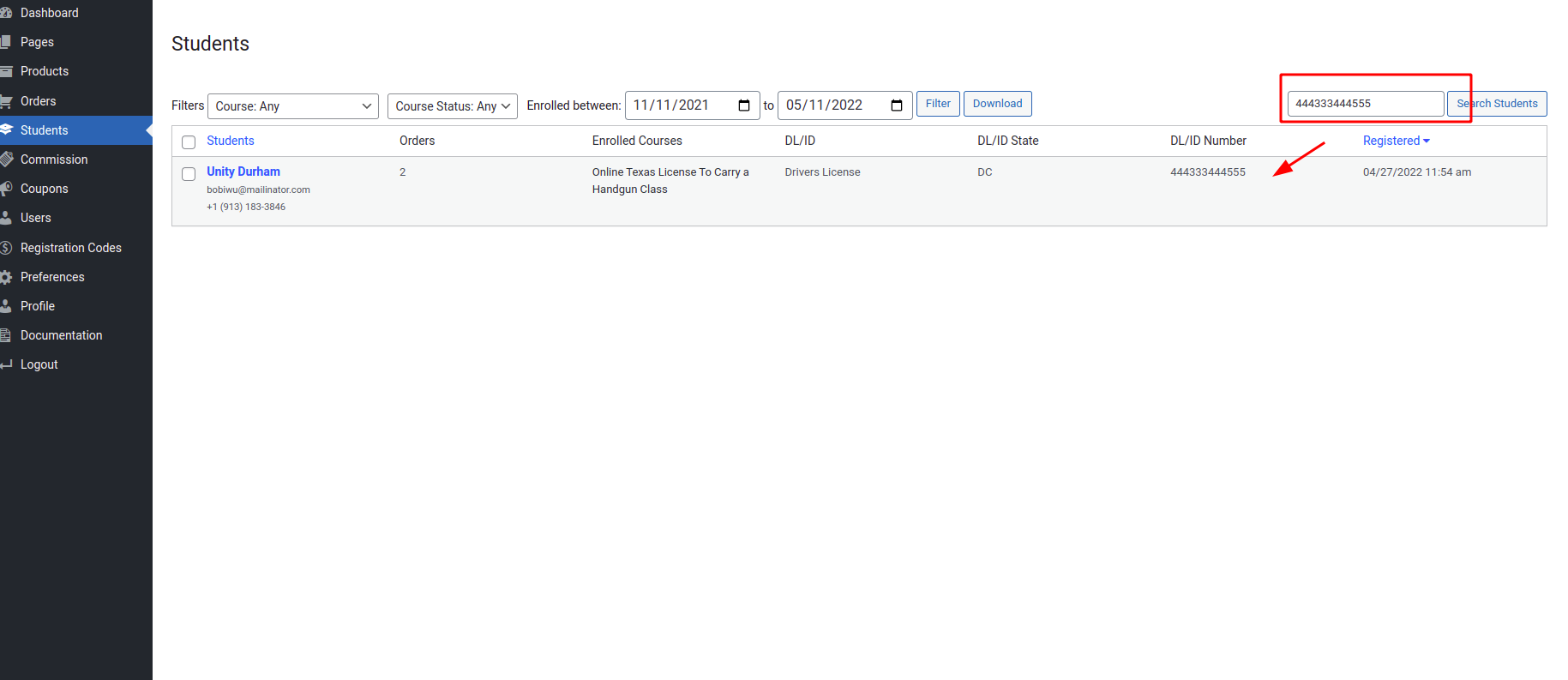
Search for students by name or email. or DL/ID number

-
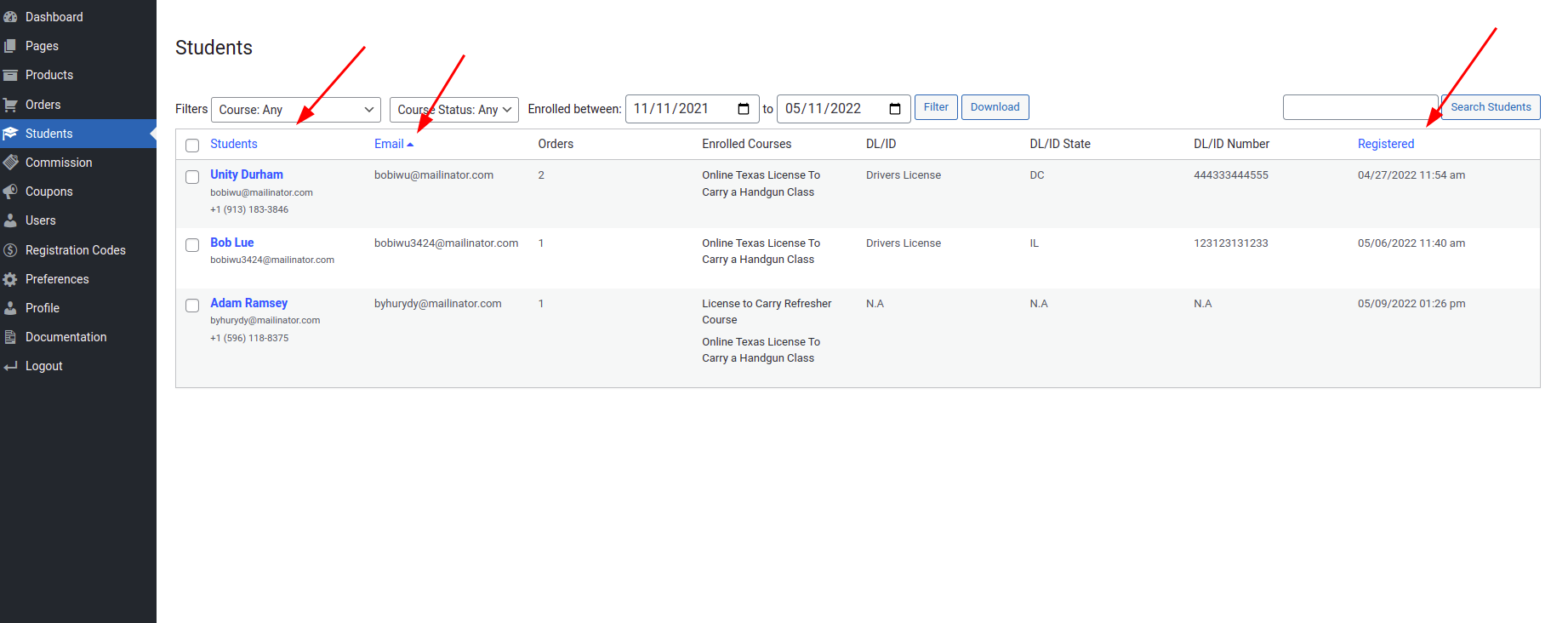
Sort by name, email, or class completion date

Sortable columns...
-
Display which product option the student purchased

-
Add a spot in the table for the business to add notes to the student (Ability to add student notes)

-
-
-
The business user will be able to edit/add the following within their portal
-
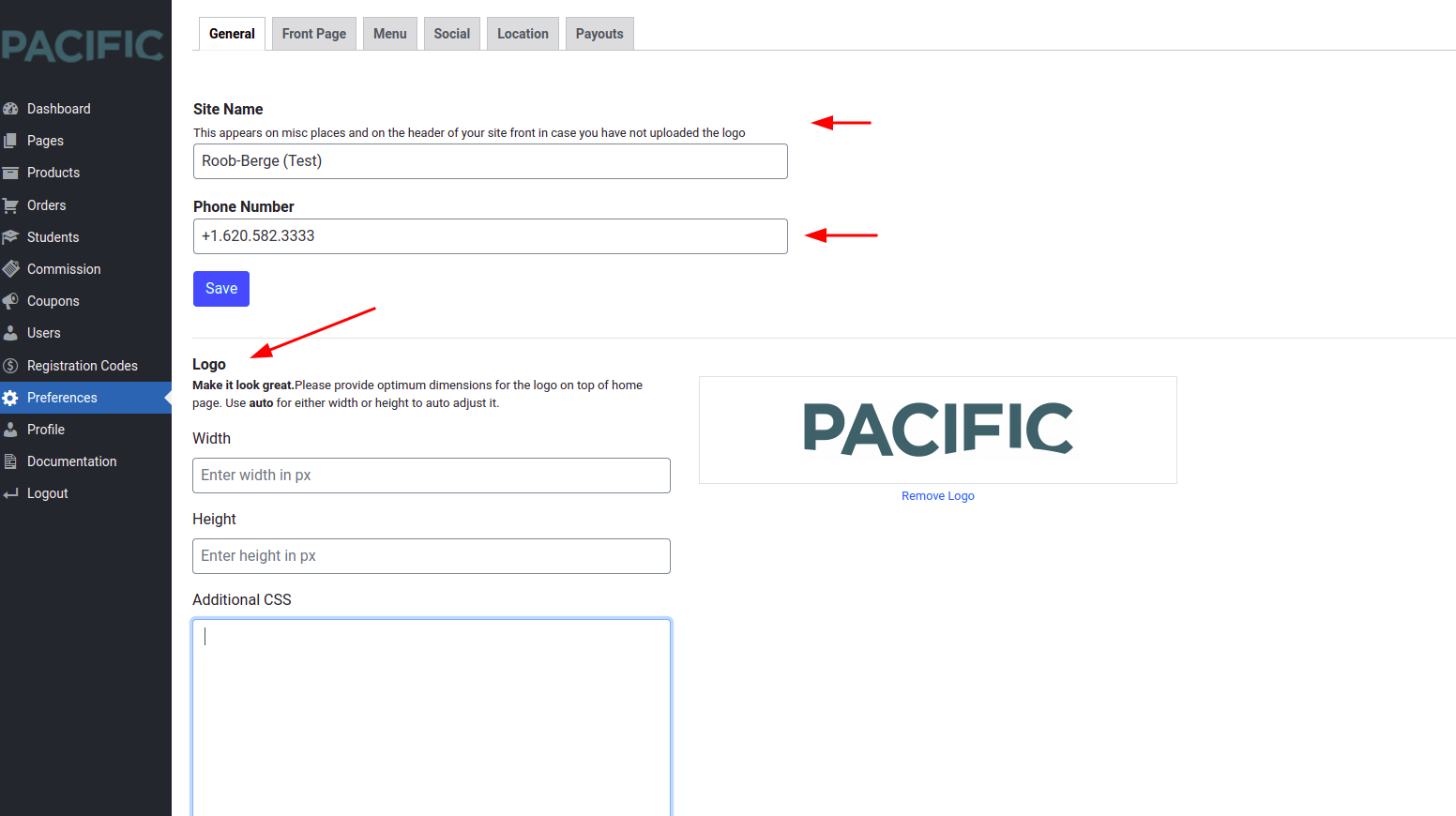
All business information that is displayed on the web page for the business
Address, phone, email, website, etc


-
Payments
-
Update how commissions are paid (Only ACHWOrks Now)
-
Updated email used for PayPal
-
Select direct deposit as a commission payment option (Only ACHWOrks Now)
-
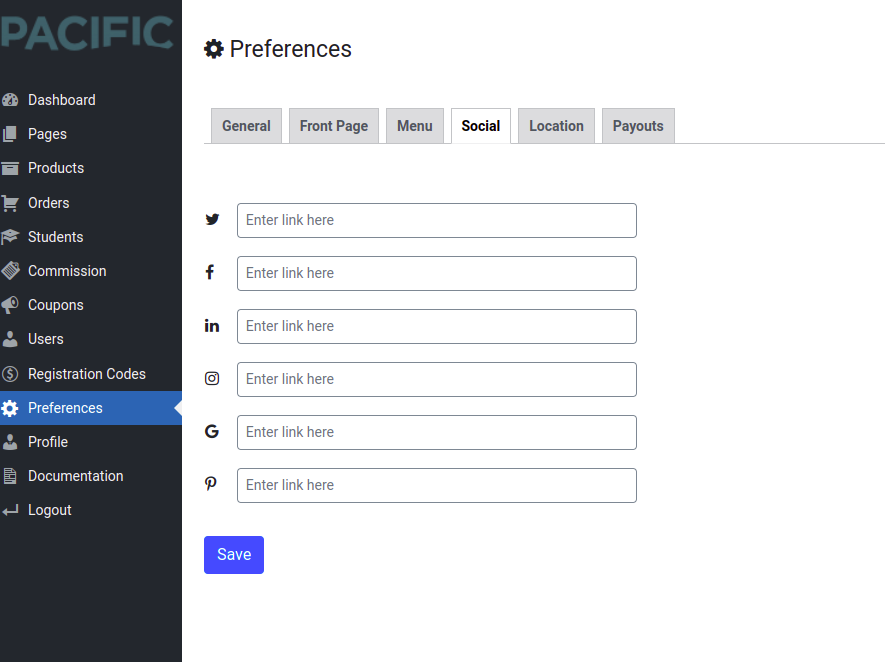
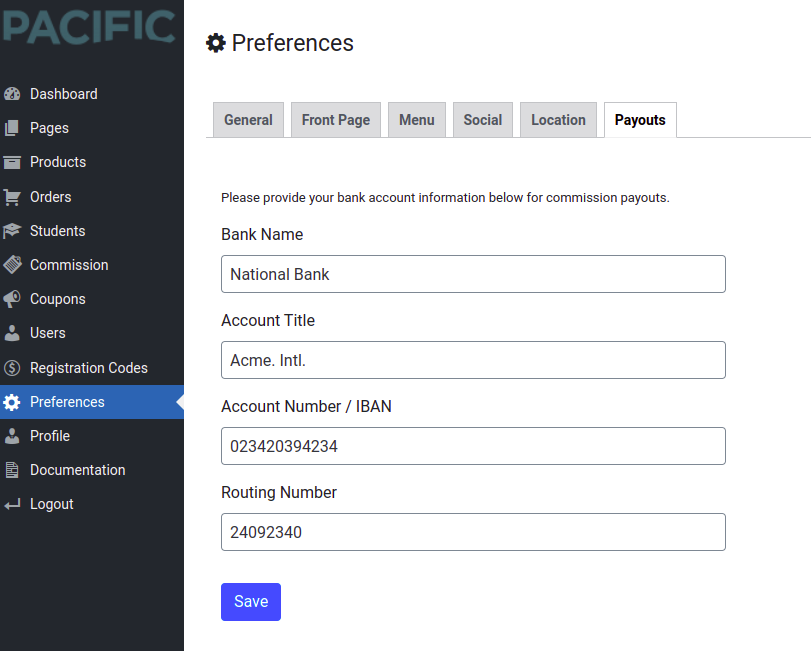
Collect bank account name, account number, routing number, and whether savings or checking account

-
-
Products
-
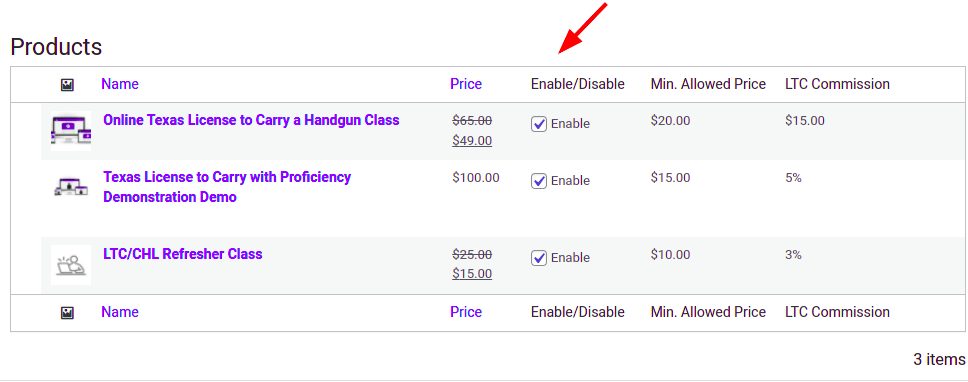
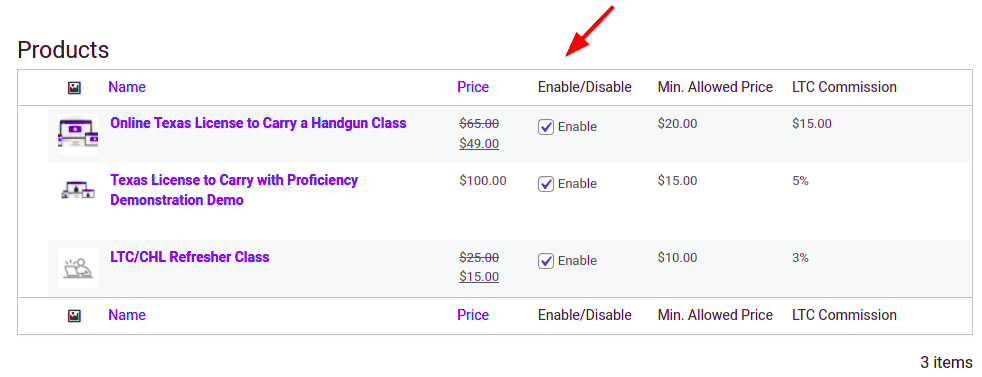
Add/edit price only/delete/enable/disable products that the business sells


Only the price can be edited

Enabling or Disabling a product from Provider Admin -
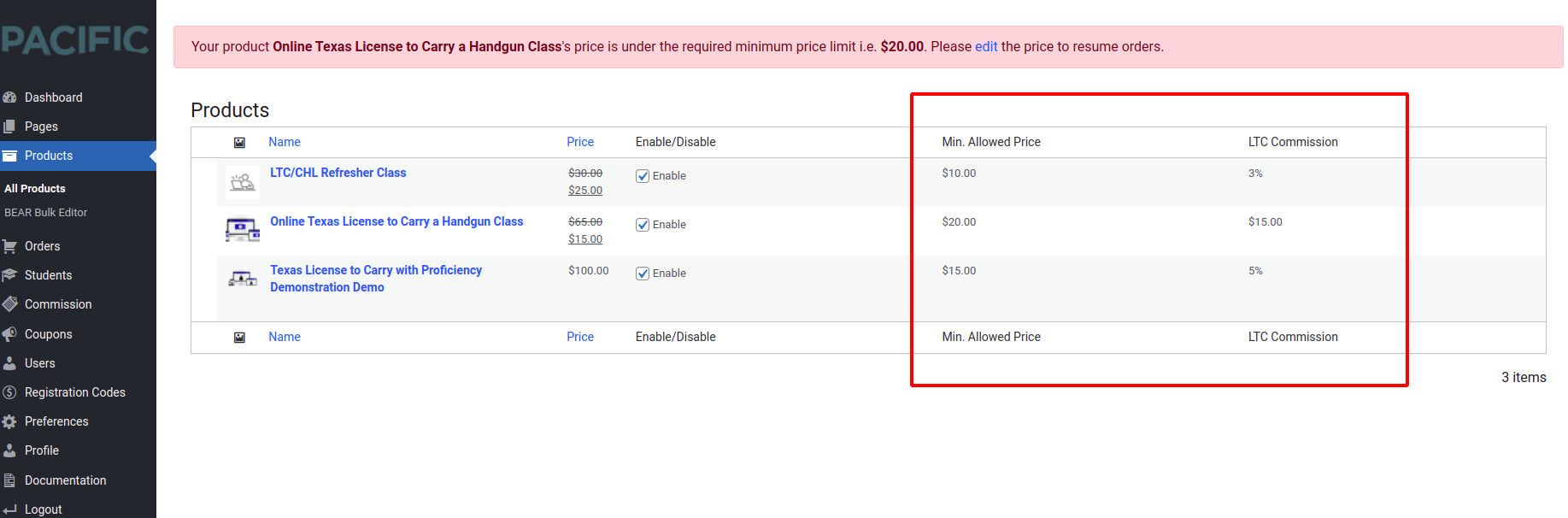
Must not be able to set LTC class price below $45 or refresher class price below $10 the specified limit in the commission settings by the super admin.
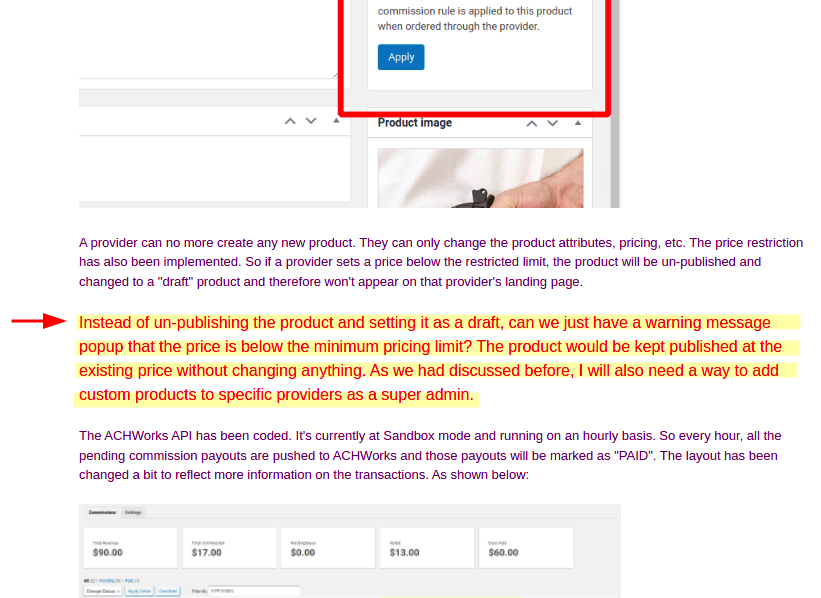
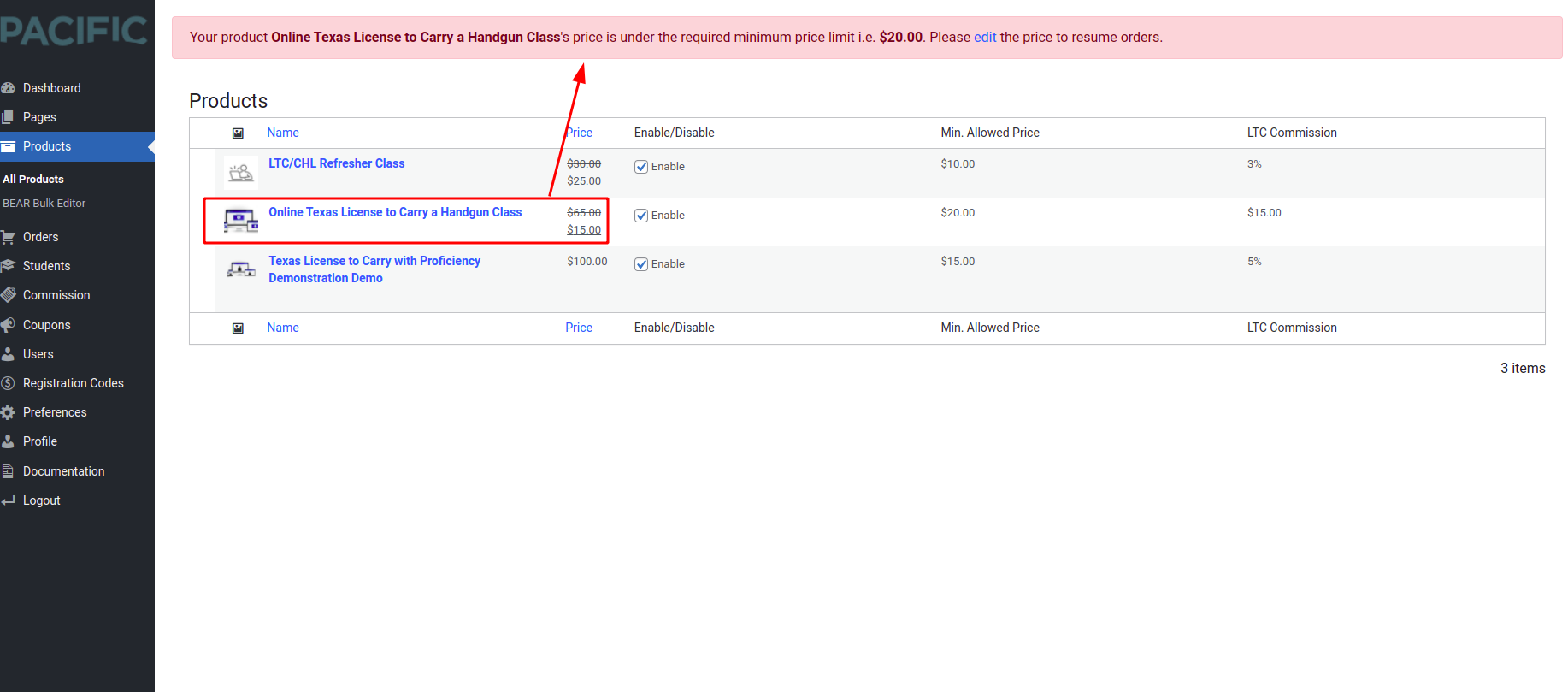
Any product with a price below this limit will still be displayed on the business landing page as per Joel's request.
👆 How the price limits and applied commissions are displayed to the provider admin

👆 By this instruction of Joel, the provider can set the price below the limit, but will see a warning as shown below:
-
Specify which online class is included with the purchase.
>>> Only super admin can create (“parent”) products and therefore specify the course
included with a product. Businesses can’t create or change a product. Every new business
gets all “parent” products copied to their site. -
Depending on the class included with the purchase will determine the commissions paid

-
Classes added/edited/deleted associated with the product are automatically reflected (mentioned) on the (product details page) businesses page
-
-
Coupons
-
Businesses will be able to create coupon codes that are for their products only


👆 Product restrictions for the provider. Only their own products are listed here. Even if they leave it empty, the coupon applies to their products only.
-
Coupon codes cannot be created that bring any product with the LTC class associated below $25 or below $8 if it is associated with the refresher class.
The allowed price restriction is already applied to the product price as mentioned above.
-
-
Purchase Registration Codes
-
Businesses can purchase codes that are redeemable for the online LTC class. Businesses give/sell these codes to customers and the customer can then use the code on the website to redeem it for the online class.

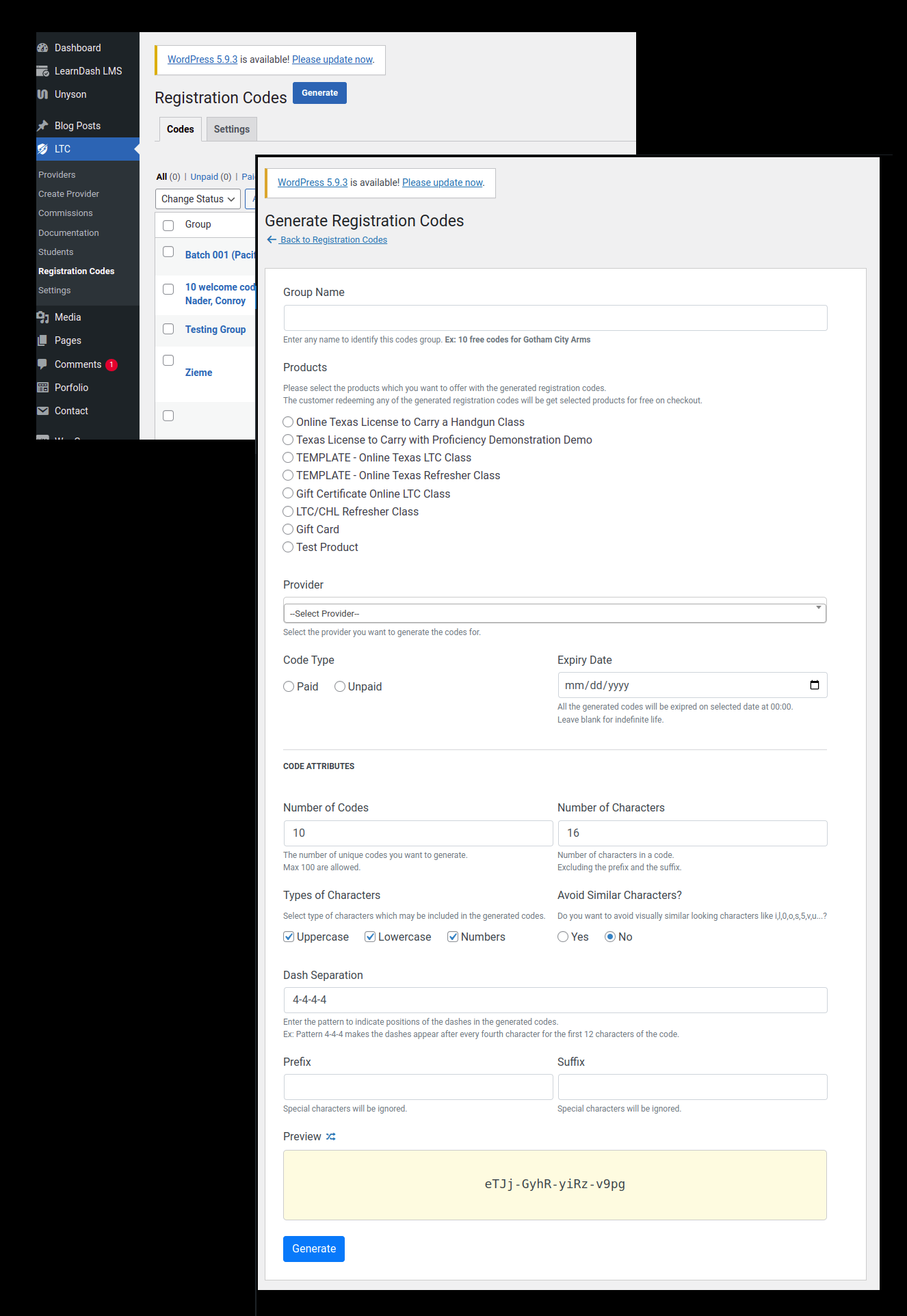
👆 Creating Purchase Codes

👆 Sending Purchase Codes by Email (via Super Admin)

👆 Purchase codes in Provider Admin
-
When a code from a business is used, the customer will be enrolled get the associated products added to the cart with a 100% discount, and will be enrolled in the associated courses after checkout, in the online LTC class, and be associated with the business the code came from.

👆 Redeeming a purchase code from Provider's home page
-
Codes purchased and which ones have been used and by what customers will be viewable in the business portal

-
On the checkout page, an additional field across from or under “coupon codes” will be entered for “registration codes” and also a dedicated page to redeem the code

-
When the code is entered, as long as it is a valid code, the current cart contents are emptied, and the online LTC class is added. The price would be $0 associated products added to the cart with a 100% discount and after checkout, the student is also associated with the business that the code came from.
-
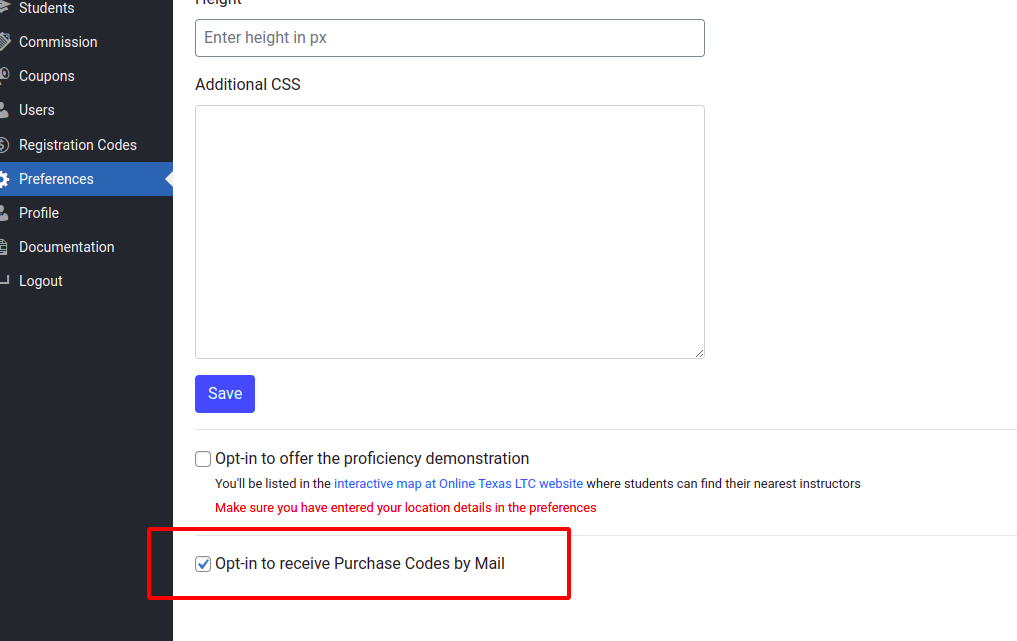
Businesses can select if they want codes mailed to them on cards and discounts are offered depending on the number of codes purchased.

👆 From Provider Admin

👆 How it's indicated on the providers' list in Super Admin
-
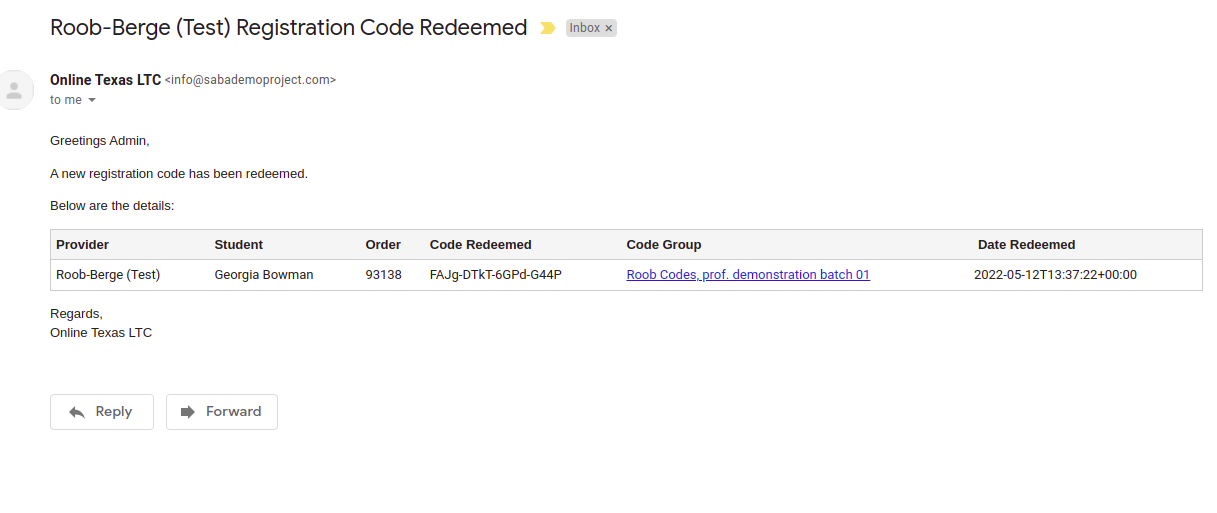
Registration code purchase receipts will be emailed to the business and to OnlineTexasLTC

👆 Email alert to super admin

👆 Email alert for provider admin (in the order alert email)
-
Existing codes created will be imported into the new website
>>> Yes, we have included this in the sync script
-
-
- Backend direct sales page
This whole section is on hold as a post-go-live task (including the Authorize.net payment method to be used in the backend)
- Through the business portal, the business user can process the sale of a class for a customer Customer provides the business their name, email, and CC details.
- Business processes the transaction and the student is emailed their login/class information and receipt
- A generic password is automatically created for the customer and sent with the above email
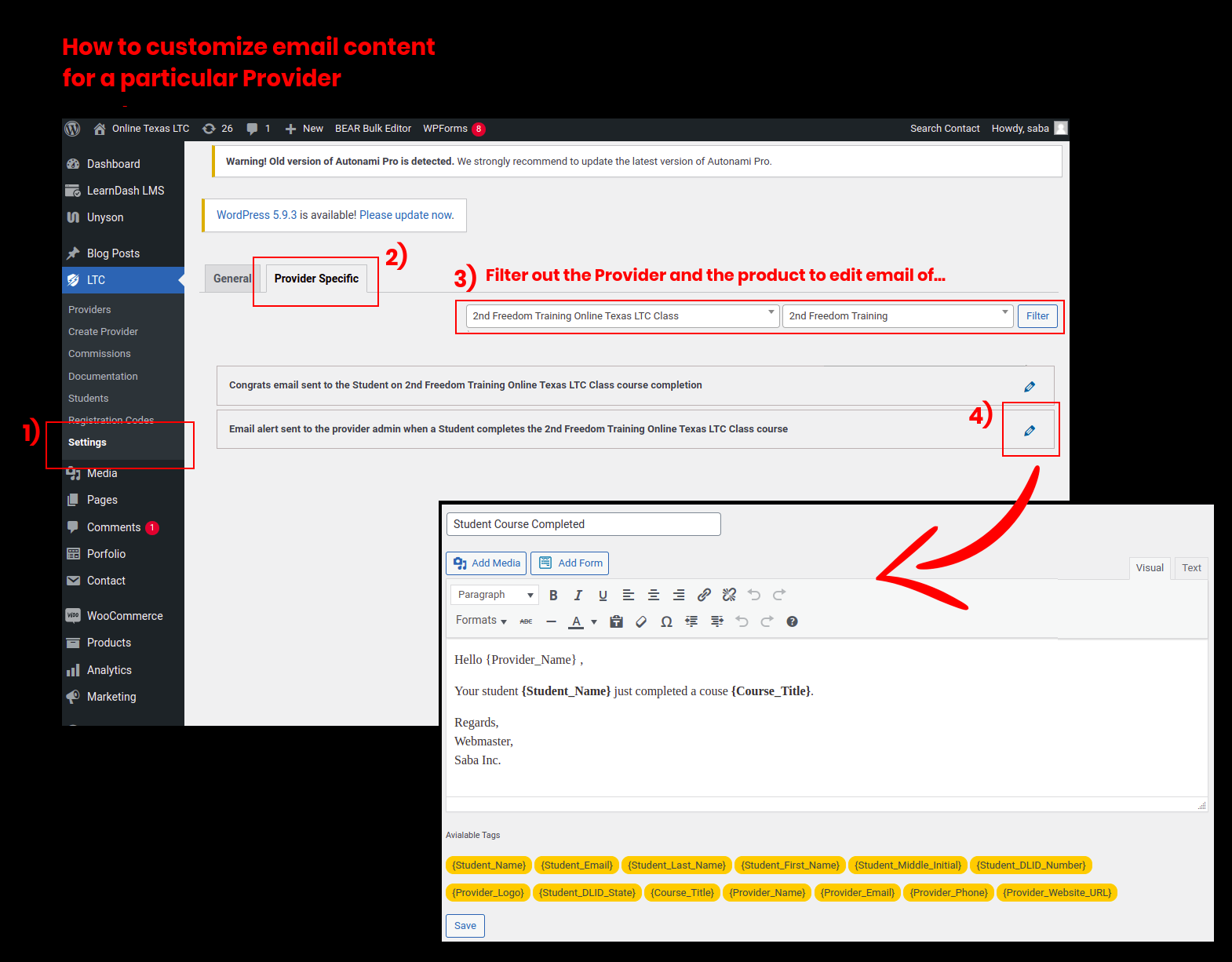
- Edit course completion notifications (Custom Email Templates for every business)
- The notification that is sent at the end of the class is different for every business.
- A default template will be used, but the businesses will be able to edit the information in the notification.
- Different notifications can be set depending on the product purchased from the business
- Only products containing the online LTC class will have course completion notifications
(We developed it for all products)


- The notification that is sent at the end of the class is different for every business.

















My Account Page
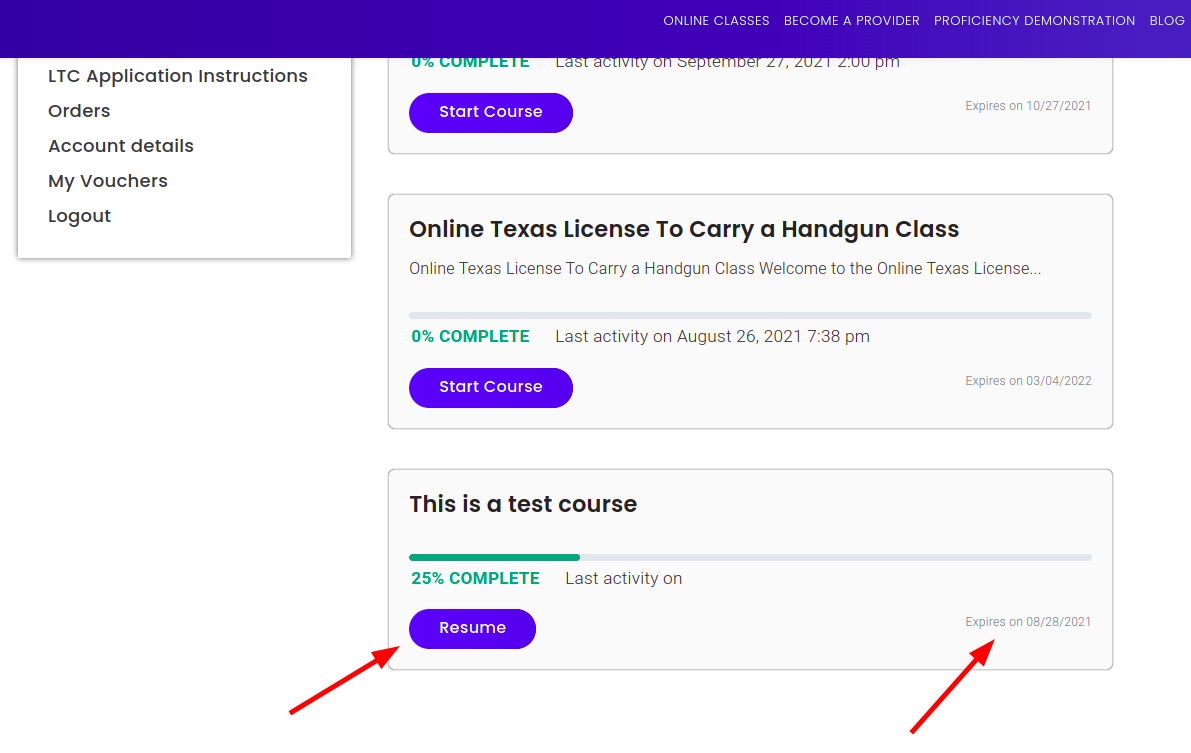
- Upon logging in, all students will be automatically redirected to the “my account” page.
>>> Requirement satisfied... - They will be able to see course progress as well as a “resume course” type button that will take them back to where they left off in the class. -- Also, Display course expiration (6 months after purchase)

- If the class is finished, the student will be able to download their certification of completion

- Update website password and email address

- Purchase/order information



Eligibility Questionnaire / Discounts
- Questionnaire tool with conditional logic to determine LTC eligibility.

After completing the questionnaire, the student can purchase the class.


- Discounts for the class are available based on the profession selected.
- Students can either continue the eligibility questionnaire or go straight to checkout with their available discount.

- This page will be hidden for all logged-in users. This is to help prevent students that have already purchased the class at a full price through another business from requesting a discount.
>>> True. Even if the logged-in user tries to load the page directly, they'll not see the questionnaire.


Proficiency Demonstration
- Proficiency Demonstration Page (interactive map: https://onlinetexasltc.com/proficiency-demonstration/)
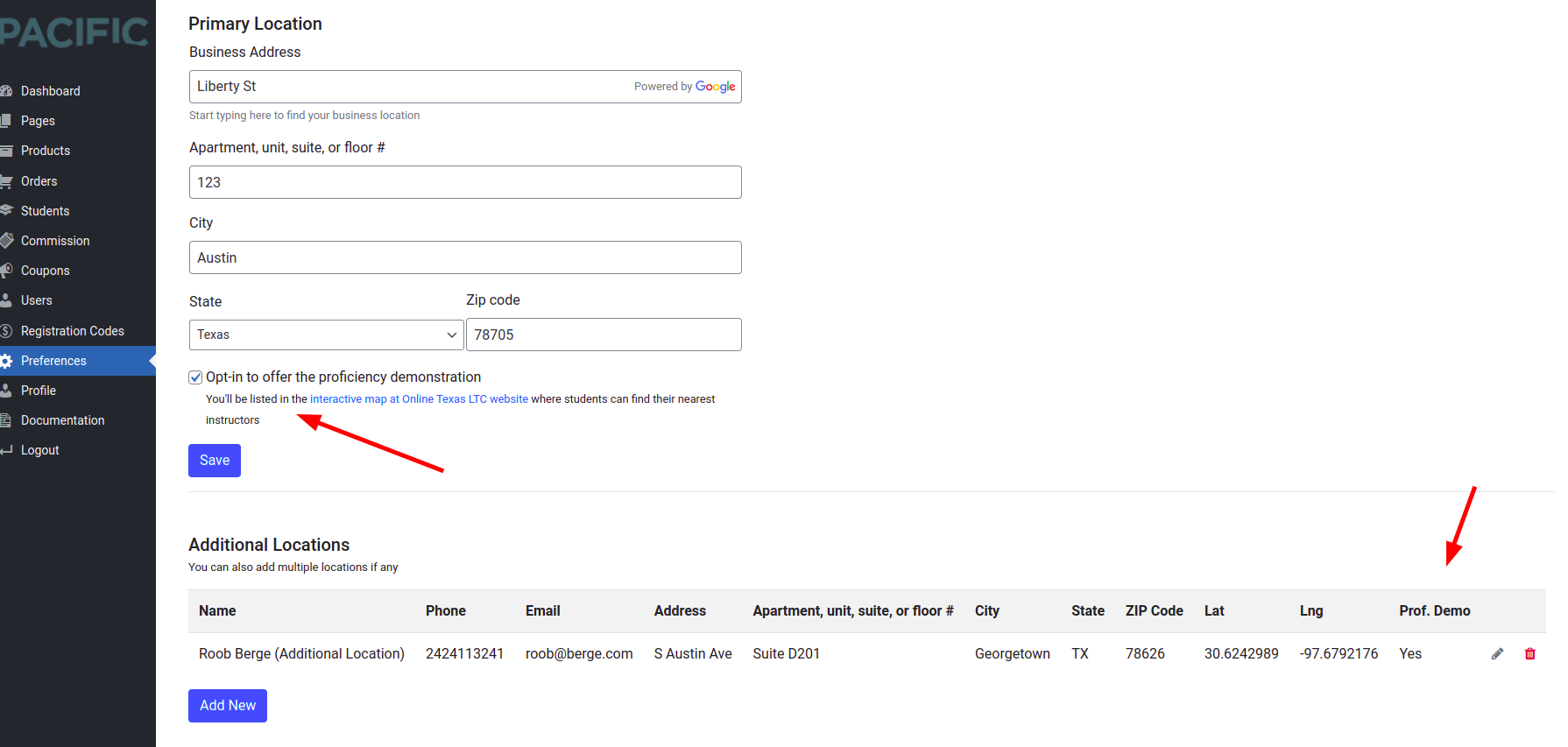
- As referenced above in the business portal, this page is for students to find instructors to do the proficiency demonstration with.
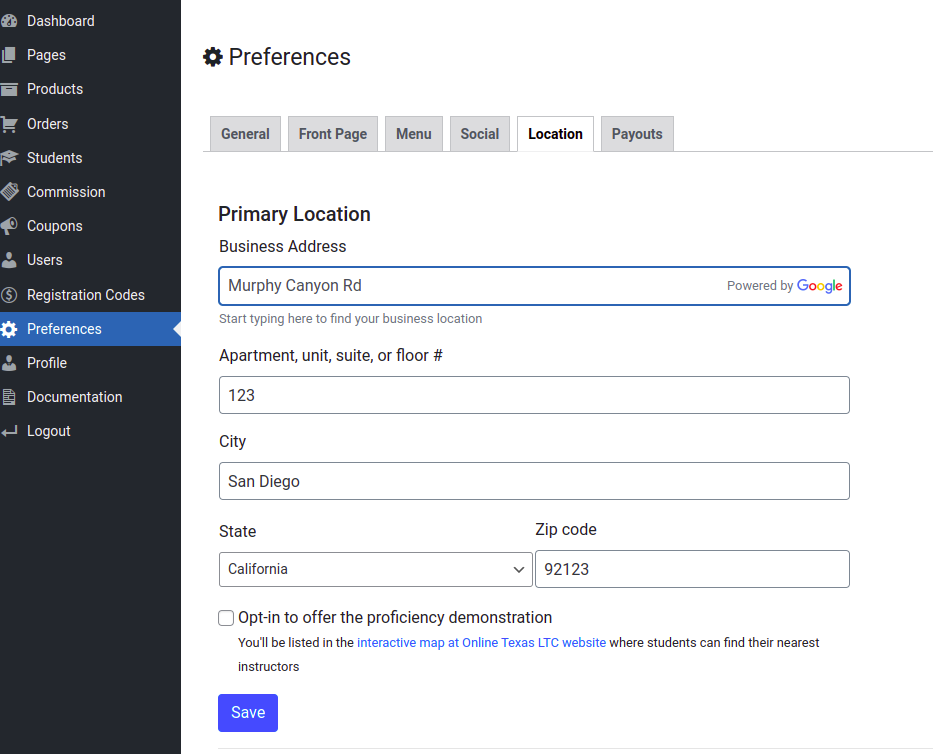
- It will include an interactive map that students can put their zip code in and find one of our partnered businesses near them.
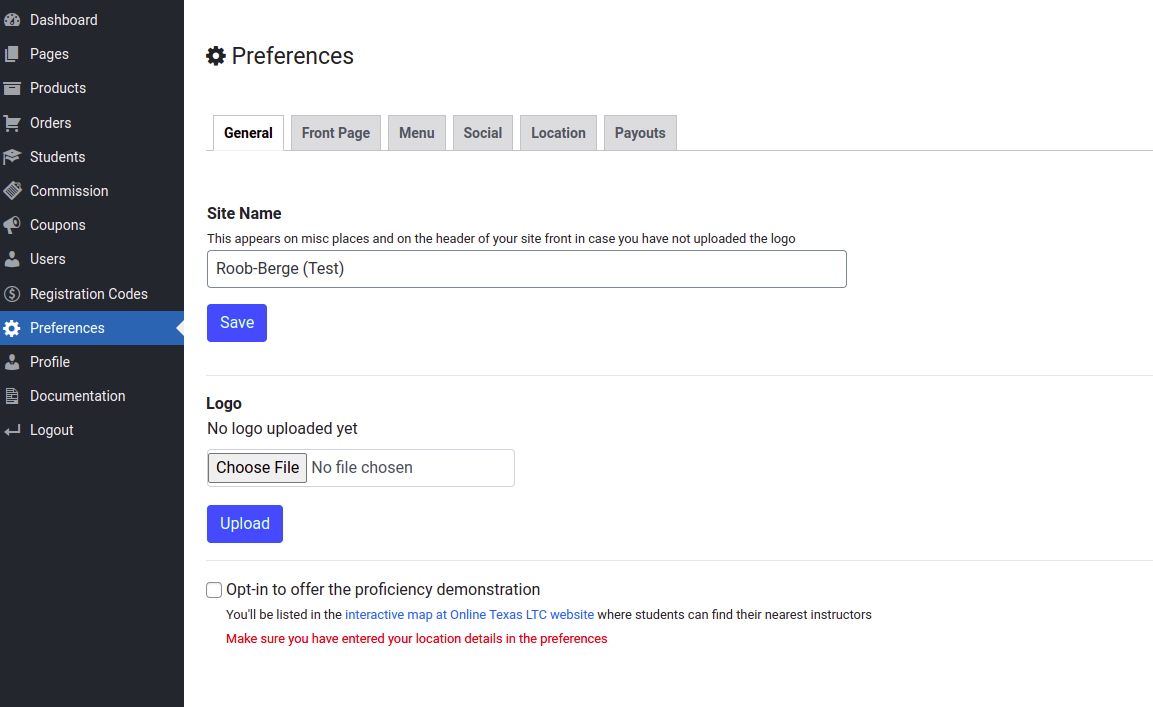
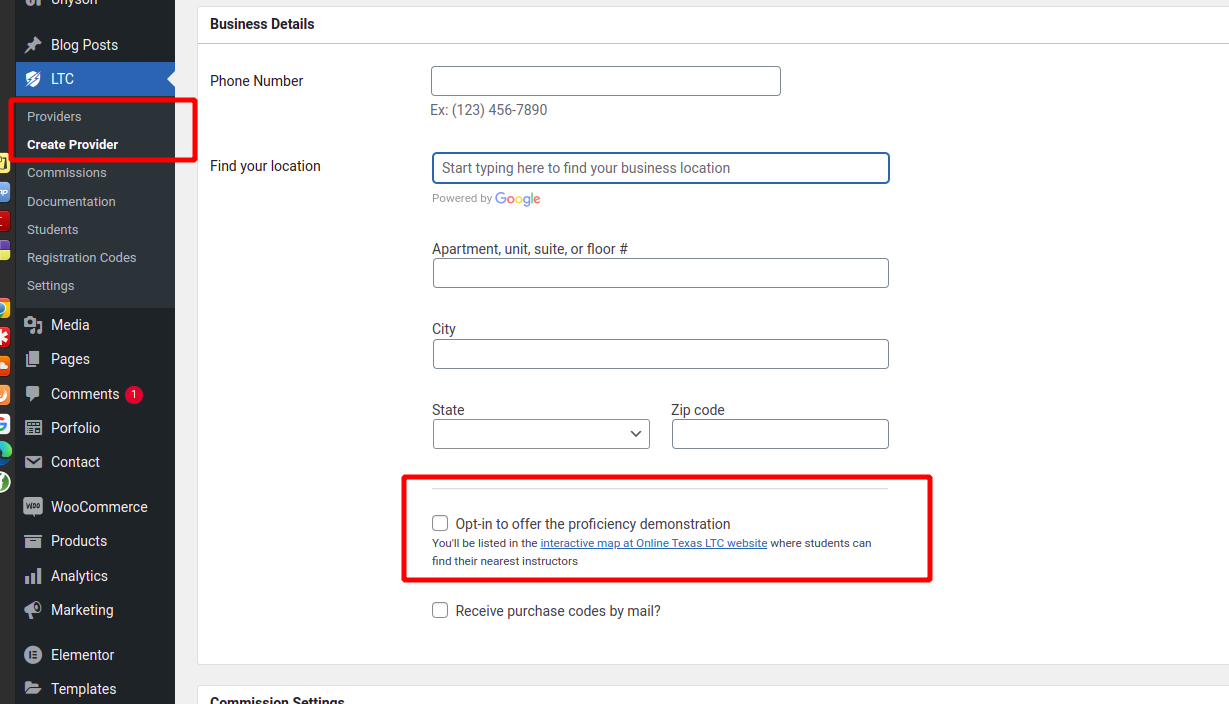
- Businesses can opt-in or out of being listed on this page from the business portal

- Businesses can also be manually added to this page from the back end (super-admin).

Website Backend (Super admin) **
- Ability to view and edit all user information
- Including certificates of completion of LTC class

- Enroll or de‐enroll students from the online classes

- View and edit course progress

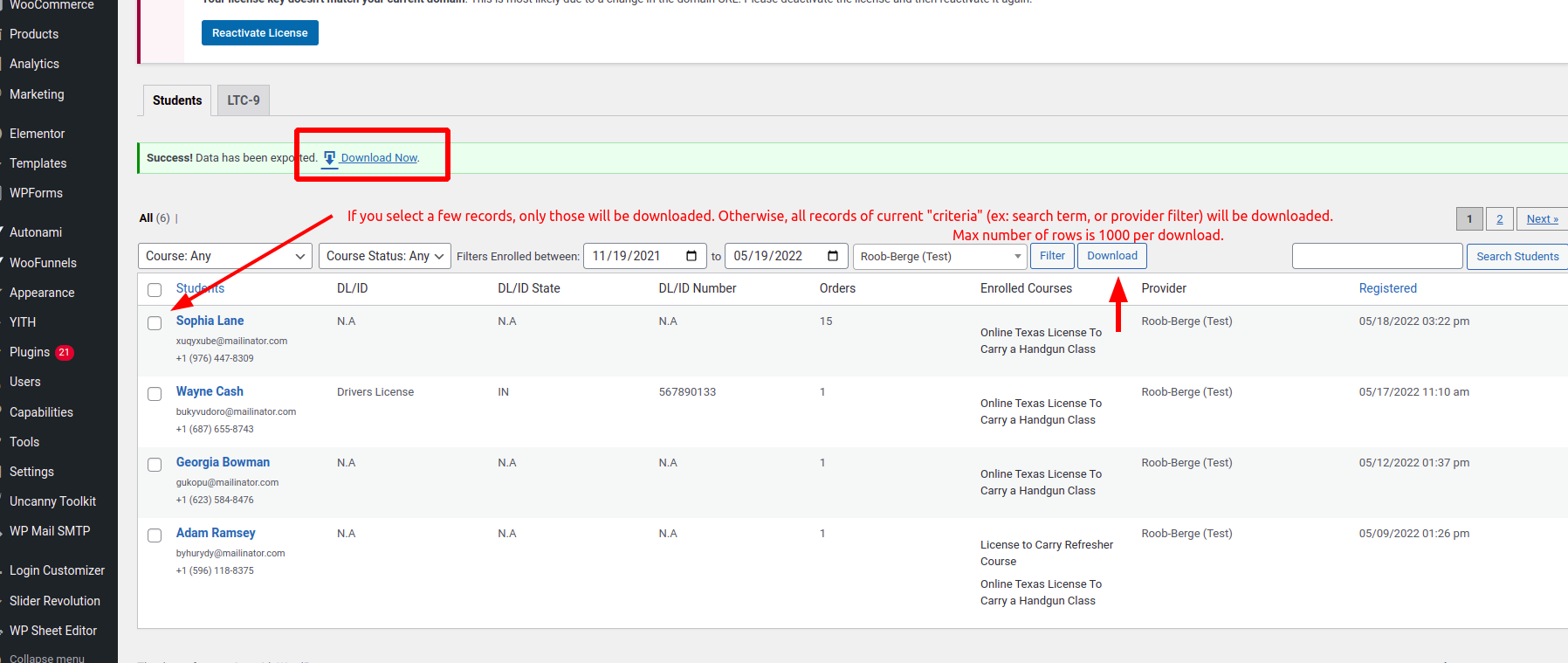
- Export all student information to excel

- Include every student in export
>>> See above. - View and edit business data and information including (order) commissions

- View and edit orders/purchases
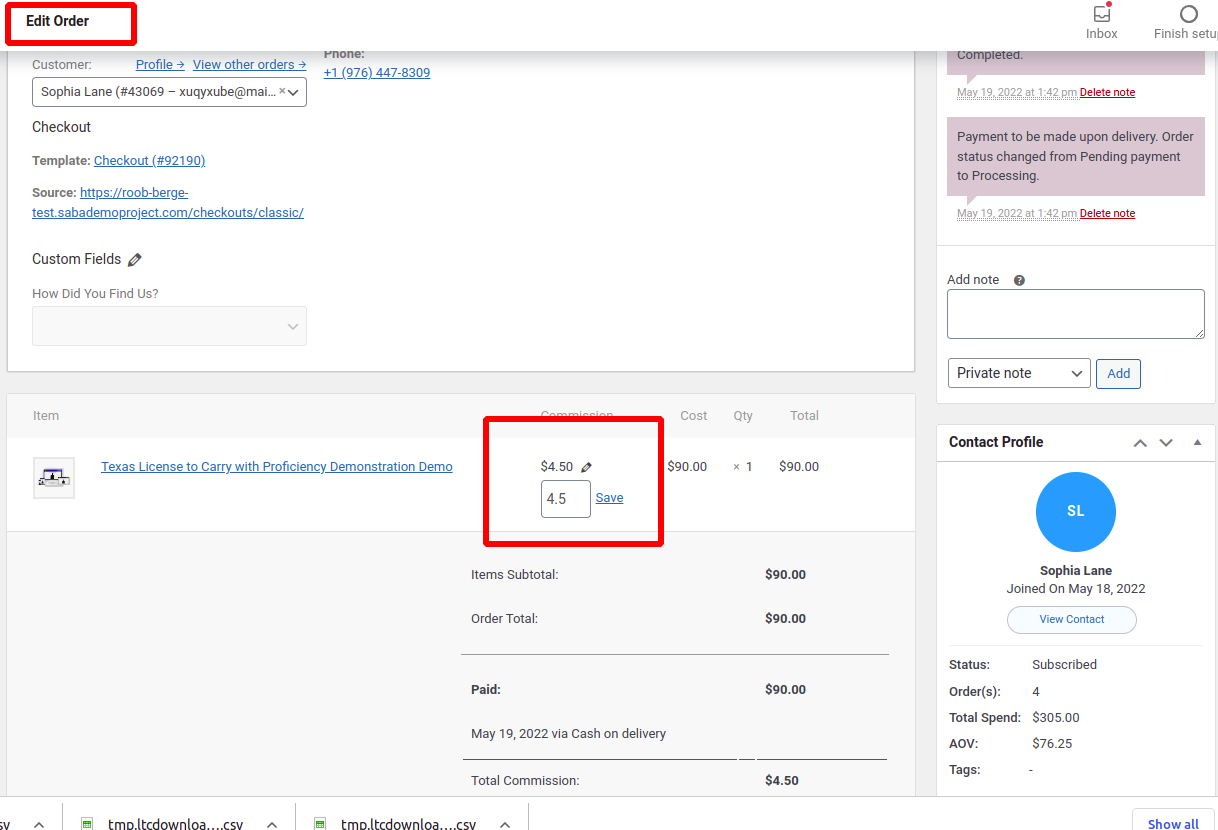
>>> That's just Woo's default order page for super admin. - Edit orders and commissions after orders have been completed

- Change which product was ordered and Process commissions based on the change of the product
>>> ** Feature not working - Hide/encrypt bank information for businesses
- Ability to assign a customer to a different business
(Doing this would allow that business to view that customers class information) - Automatic website backups to Microsoft OneDrive
>>> Instead of Microsoft OneDrive, we use Acronis Off-premises backup service which secures all files and databases, we'll activate it when we buy a new server for the new system at the time of go-live. - Manually create registration codes for businesses

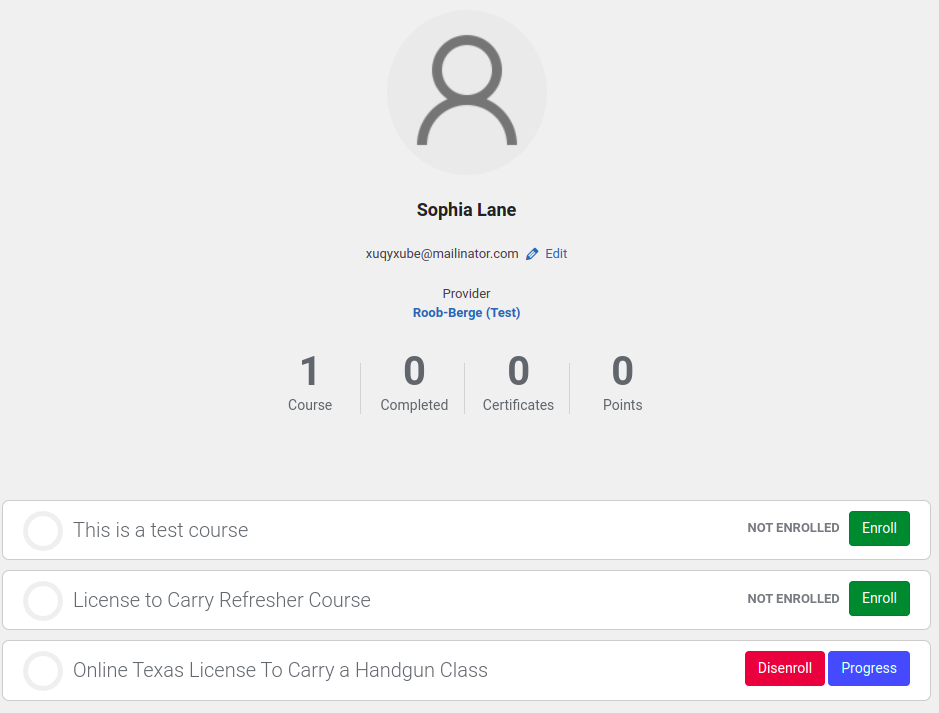
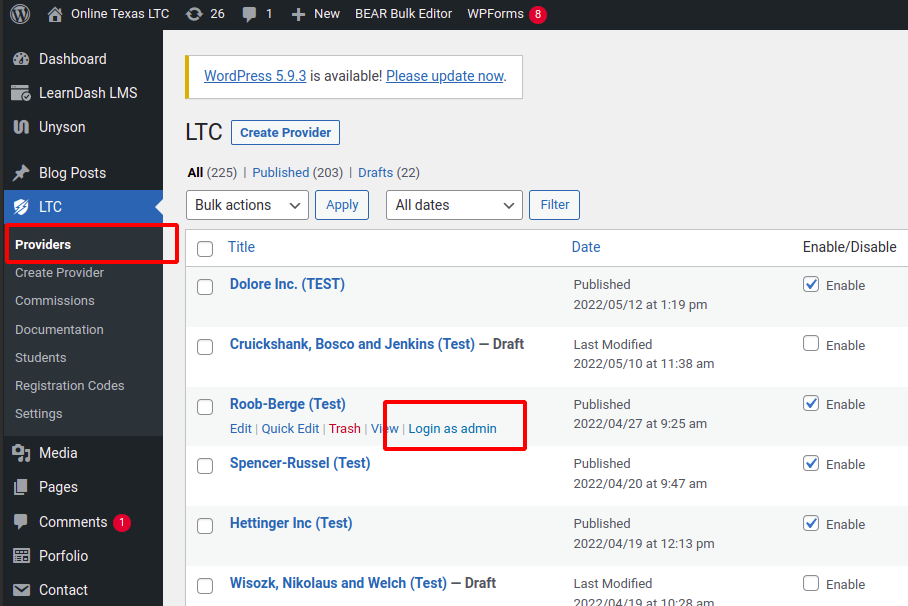
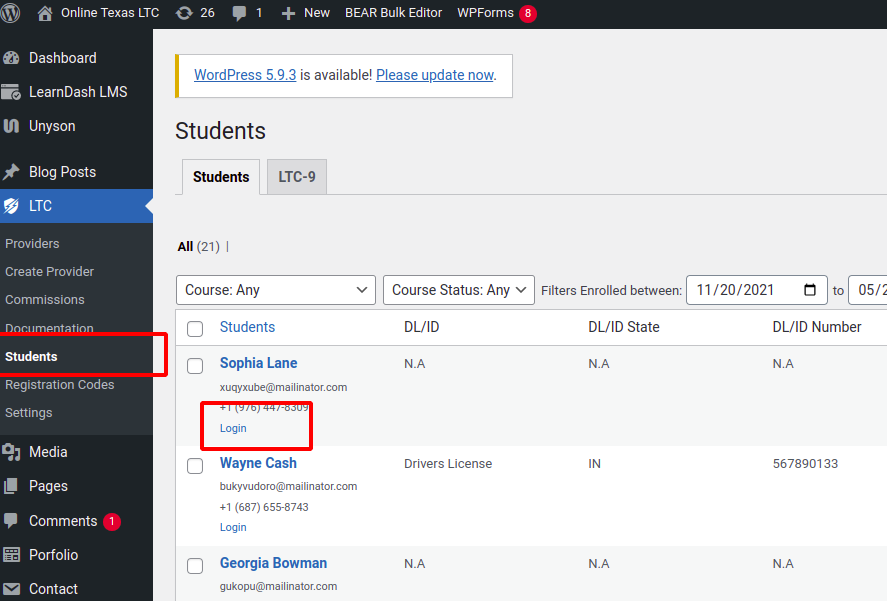
- User Switching: administrators need the ability to switch between (login as) user accounts (provider admin and a student) for troubleshooting/testing purposes.
View the site exactly how that particular user would
This is possible in the current site with the Uncanny Toolkit plugin and works very well


Course Completion Forms
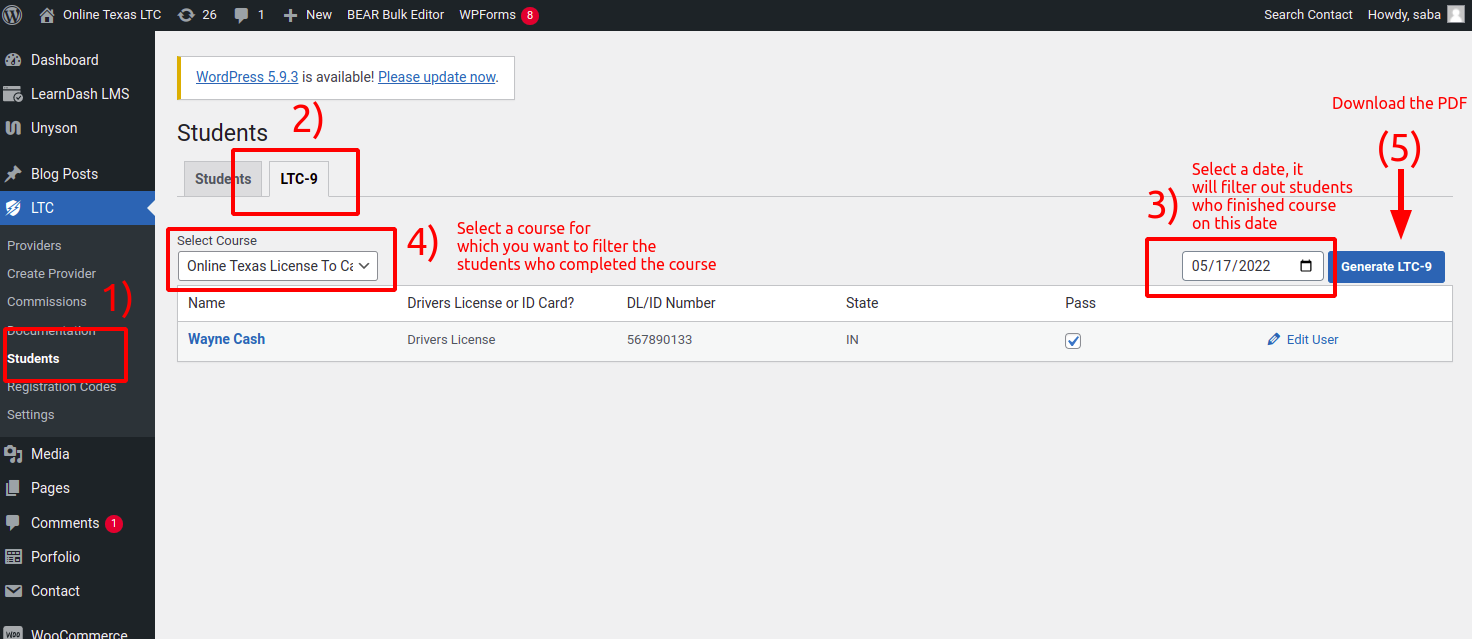
The state of Texas requires me to fill out a form called the LTC‐9 for students that complete the online class.
- The LTC‐9 is a fillable PDF that can contain information for 16 students.
Multiple forms are used and combined into one PDF with multiple pages for more than 16 students. - Forms are filled with the student's first name, last name, DL/ID number, and course completion date.
- This form must be filled out every day
On the current website, this information is sent via Zapier webhook into an excel spreadsheet. A program is written in Python then takes the data from excel and fills in the PDFs. - Instead of using Zapier and a Python program, the website will generate and export these PDFs. (auto? What time of the day?)
- The PDFs just need to be downloadable. I am required to manually upload them to the state.
Here's where and how you can download the LTC-9 PDF:
Here's a sample PDF: LTC9-g1653068798.pdf